> For the complete documentation index, see [llms.txt](https://docs.dispel.com/llms.txt). Markdown versions of documentation pages are available by appending `.md` to page URLs; this page is available as [Markdown](https://docs.dispel.com/documentation/documentation-es/gestionar-usuarios-y-acceso/users/create-a-dispel-account.md).
# Crea una cuenta de Dispel
## Descripción general
La creación de una cuenta de Dispel es el primer paso para conectarse a su sitio a través de Dispel. Para crear una cuenta de Dispel, debe haber recibido una invitación por correo electrónico o haber recibido un enlace de invitación de un administrador dentro de su implementación de Dispel.
## Crear una cuenta de Dispel
{% stepper %}
{% step %}
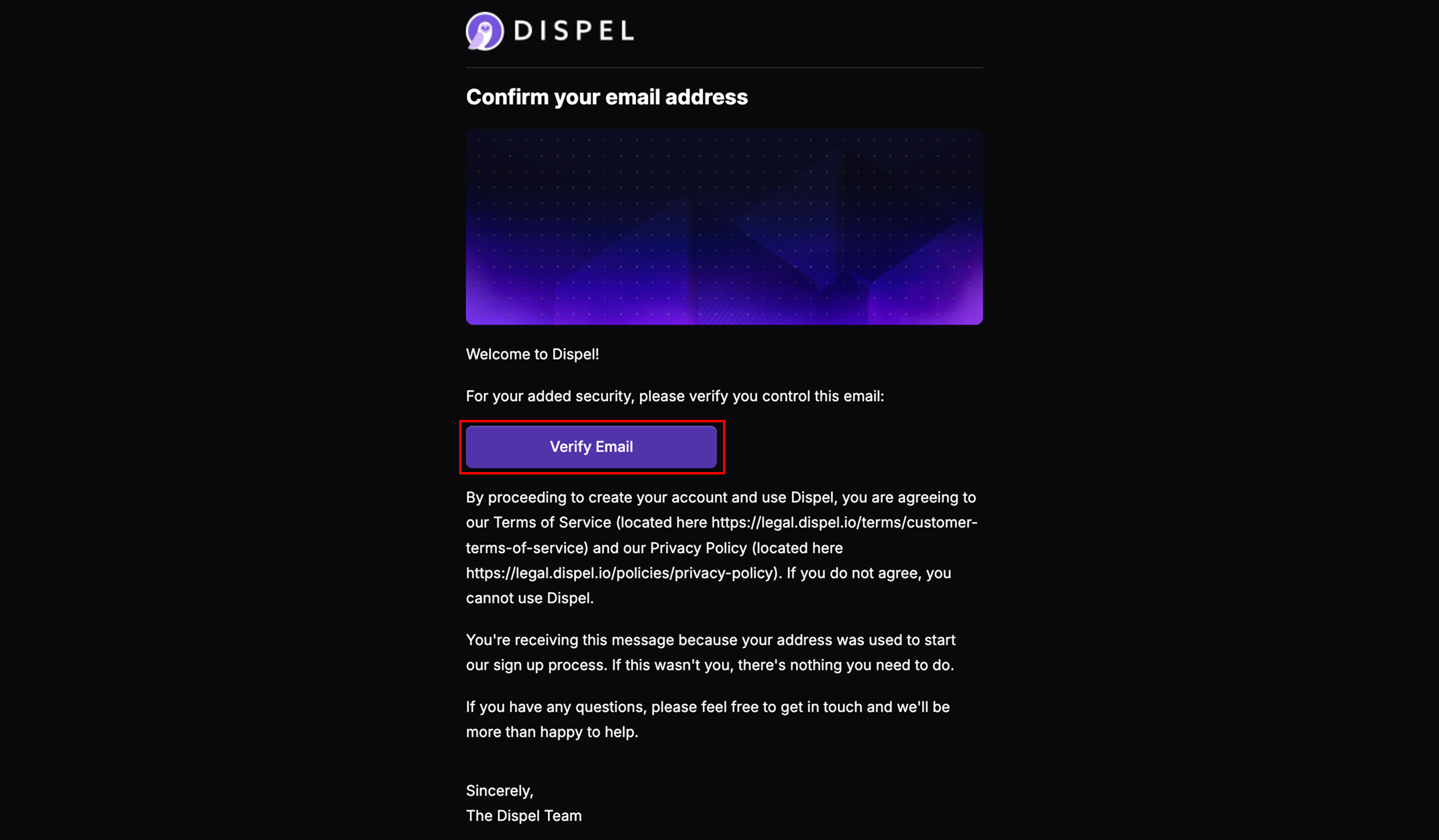
Para crear una cuenta de Dispel, primero debe ser invitado a una organización. Recibirá una invitación por correo electrónico, como se muestra a continuación, o un administrador le proporcionará un enlace de invitación. Haga clic en **Verificar correo electrónico** o abra el enlace de invitación que se le ha enviado.
{% endstep %}
{% step %}
Seleccione el idioma que desee.
{% endstep %}
{% step %}
Pulse **Continúe para configurar su nombre**.
{% endstep %}
{% step %}
Ingrese su nombre.
{% endstep %}
{% step %}
Pulse **Continúe para configurar su contraseña**.
{% endstep %}
{% step %}
Ingrese dos veces la contraseña deseada para Dispel.
{% endstep %}
{% step %}
Marque para reconocer la Política de Privacidad de Dispel y el Formulario de Consentimiento del Titular de los Datos.
{% endstep %}
{% step %}
Pulse **Establecer nueva contraseña.**
{% endstep %}
{% step %}
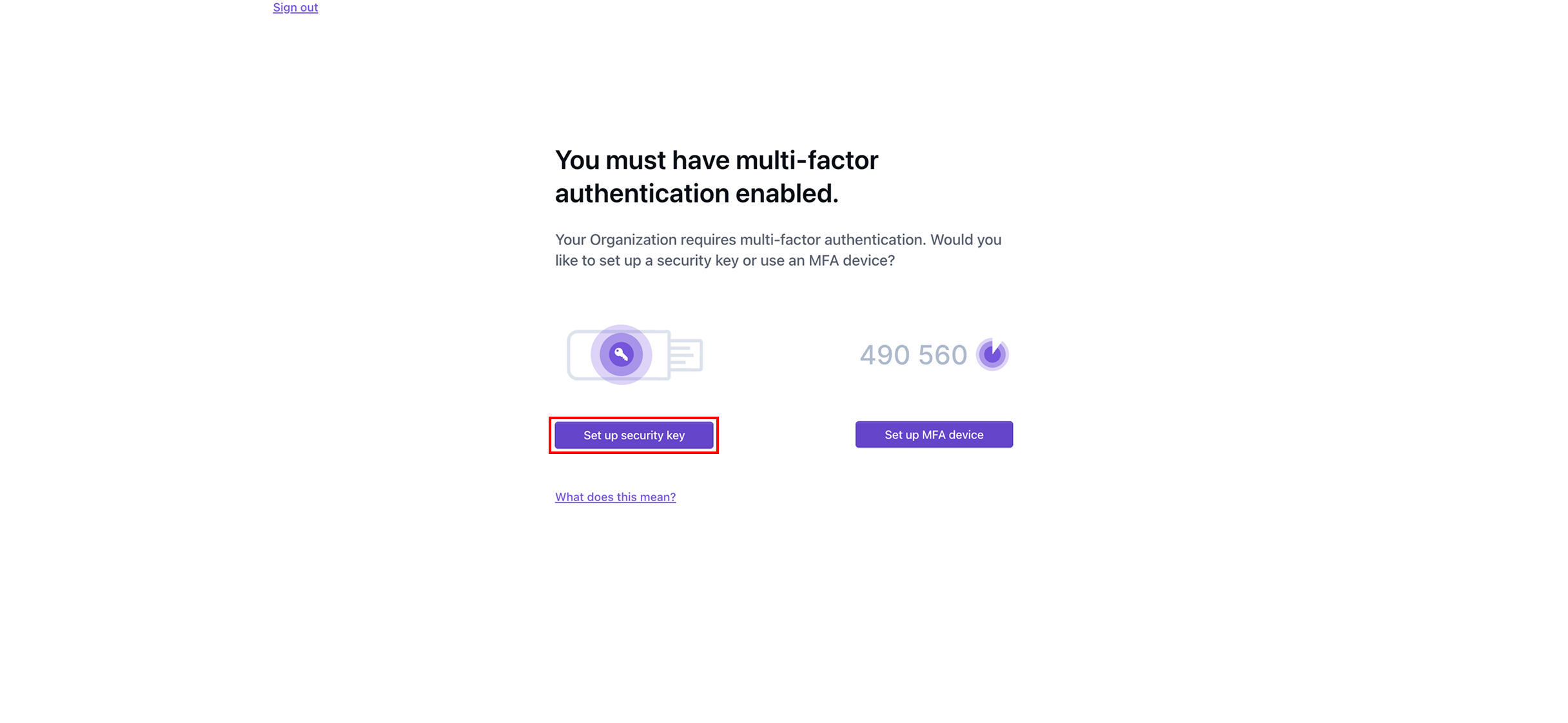
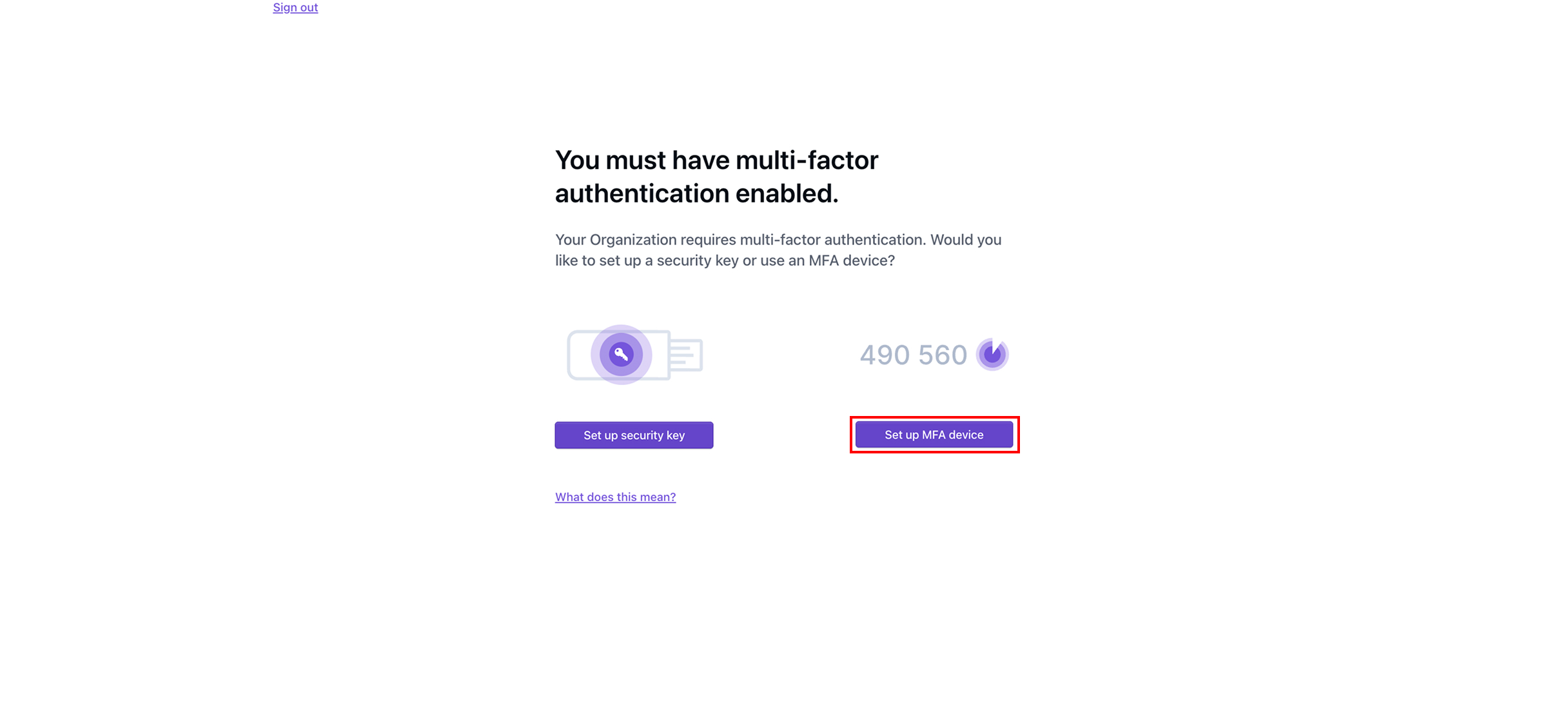
Si su organización requiere autenticación multifactor (MFA), ahora se le pedirá que configure MFA y podrá hacerlo de cualquiera de las siguientes formas [#set-up-mfa-device](#set-up-mfa-device "mention") o [#set-up-security-key](#set-up-security-key "mention"). Si su organización no requiere MFA, su cuenta ya estará completamente configurada y se le llevará al panel de Dispel.
{% endstep %}
{% step %}
#### Configurar dispositivo MFA
Pulse **Configurar dispositivo MFA**.
{% endstep %}
{% step %}
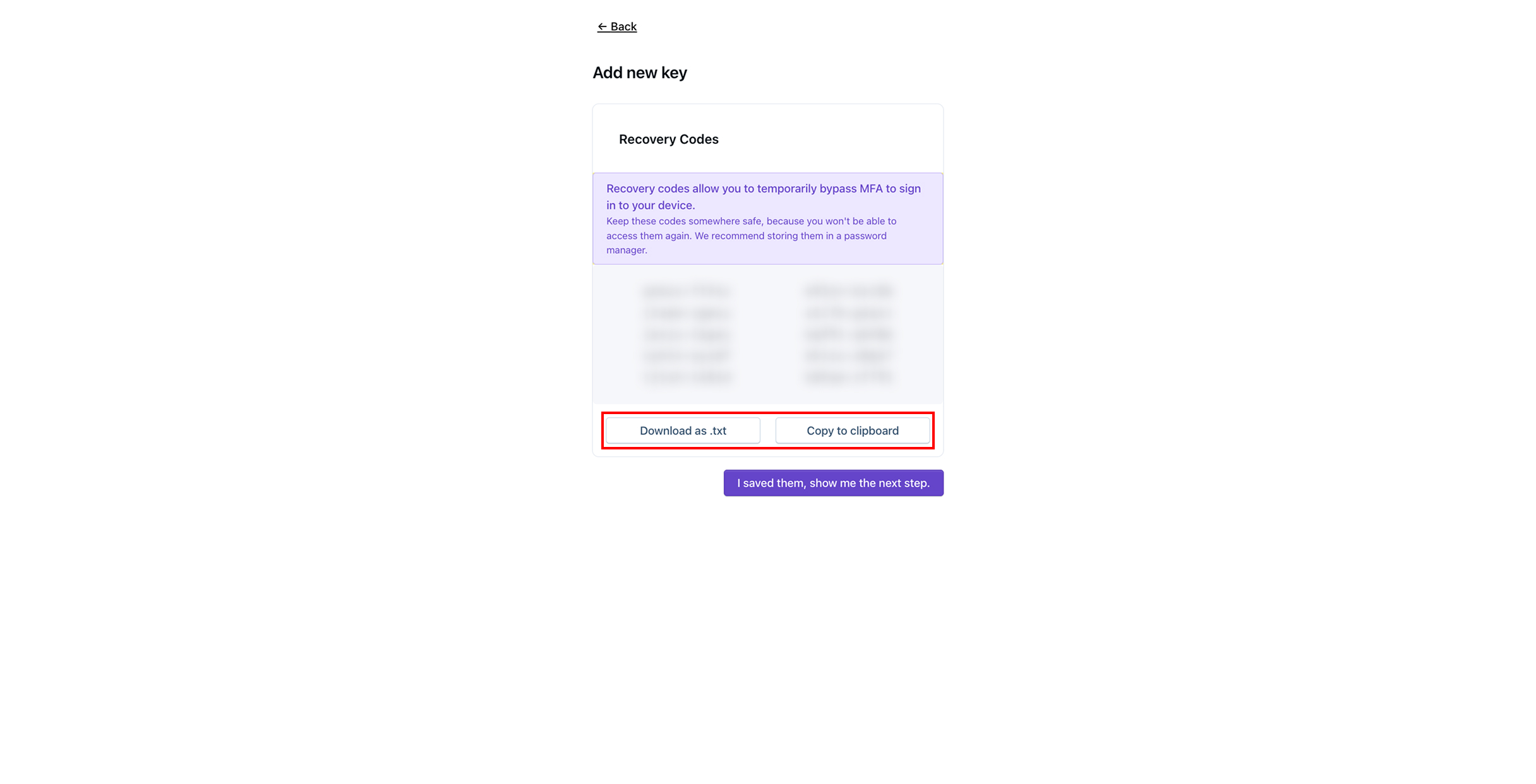
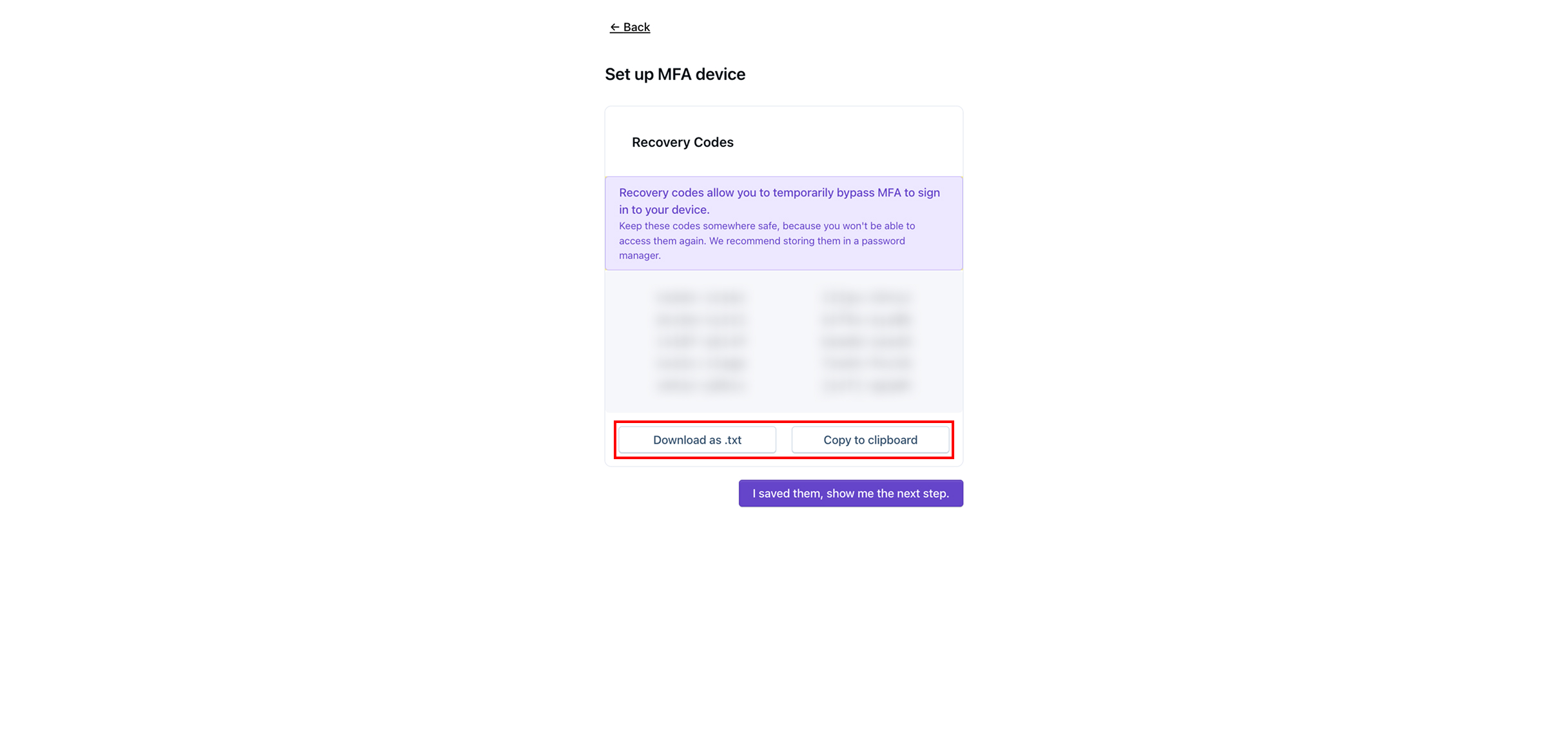
Guarde los códigos de recuperación tocando **Descargar como .txt** o **Copiar al portapapeles**, luego guarde los códigos de recuperación en un lugar seguro.
{% hint style="info" %}
Los códigos de recuperación le permitirán omitir temporalmente MFA para iniciar sesión en su cuenta en el futuro.
{% endhint %}
{% endstep %}
{% step %}
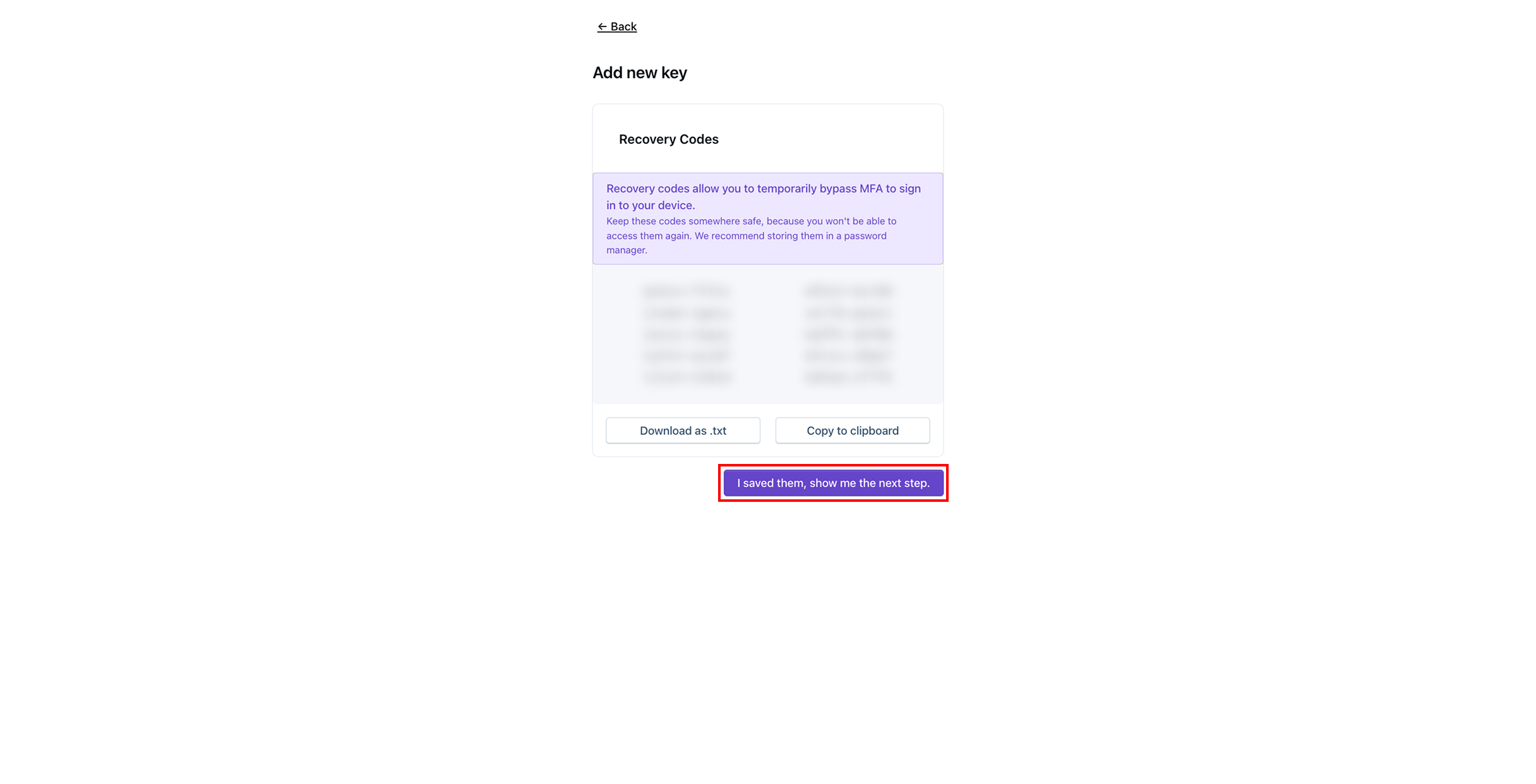
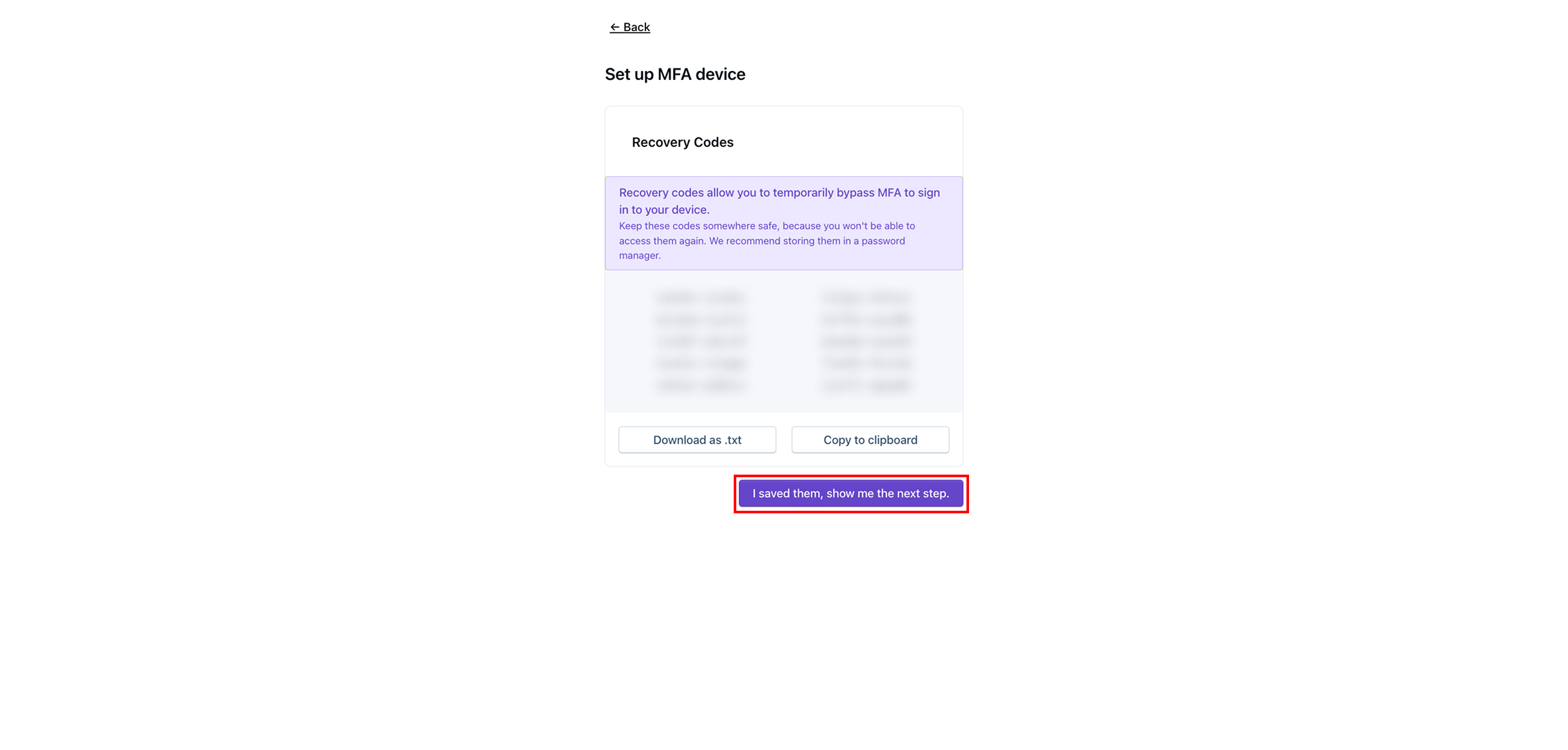
Una vez que haya guardado los códigos de recuperación, toque **Ya los guardé, muéstrame el siguiente paso.**
{% endstep %}
{% step %}
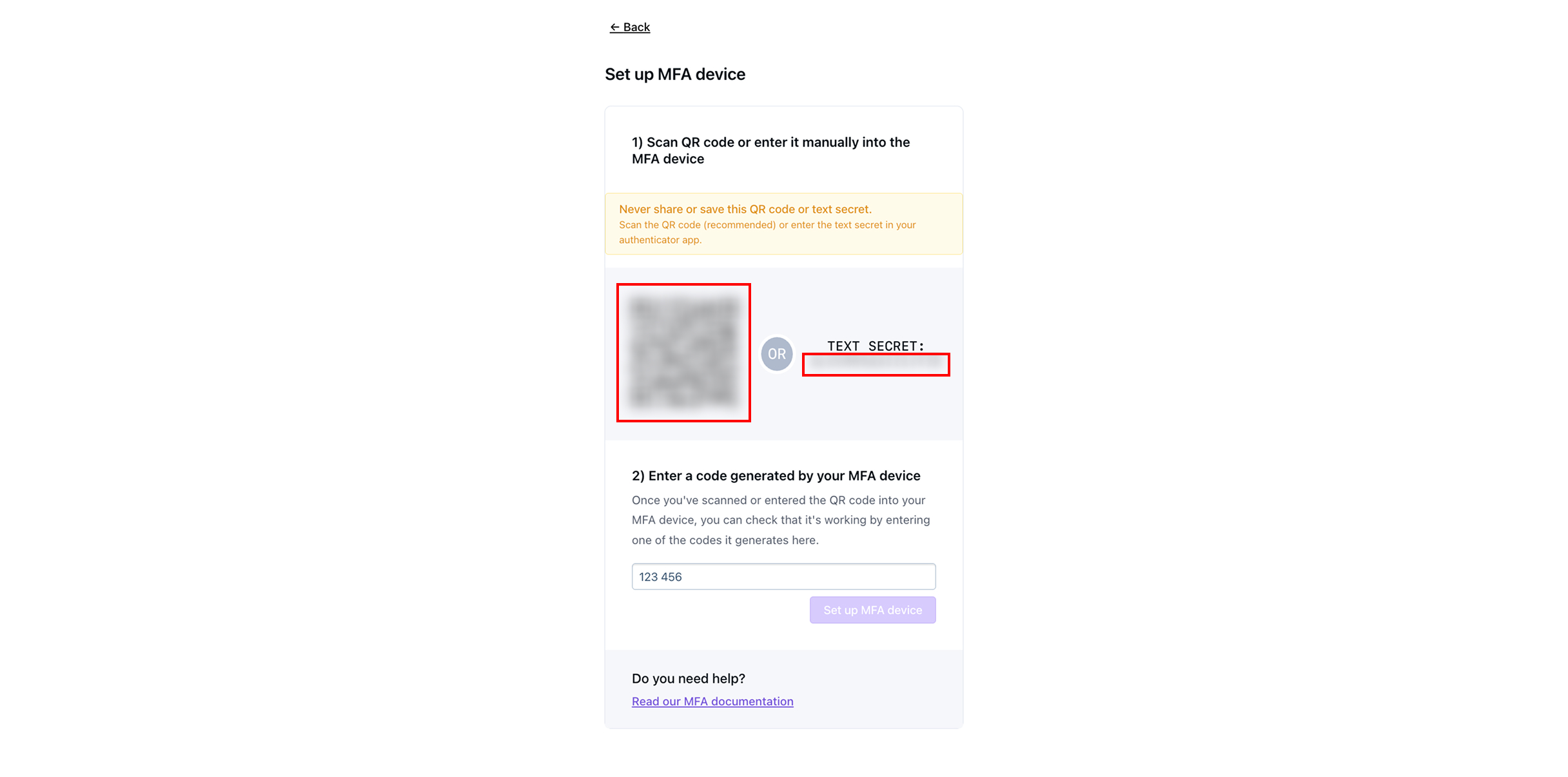
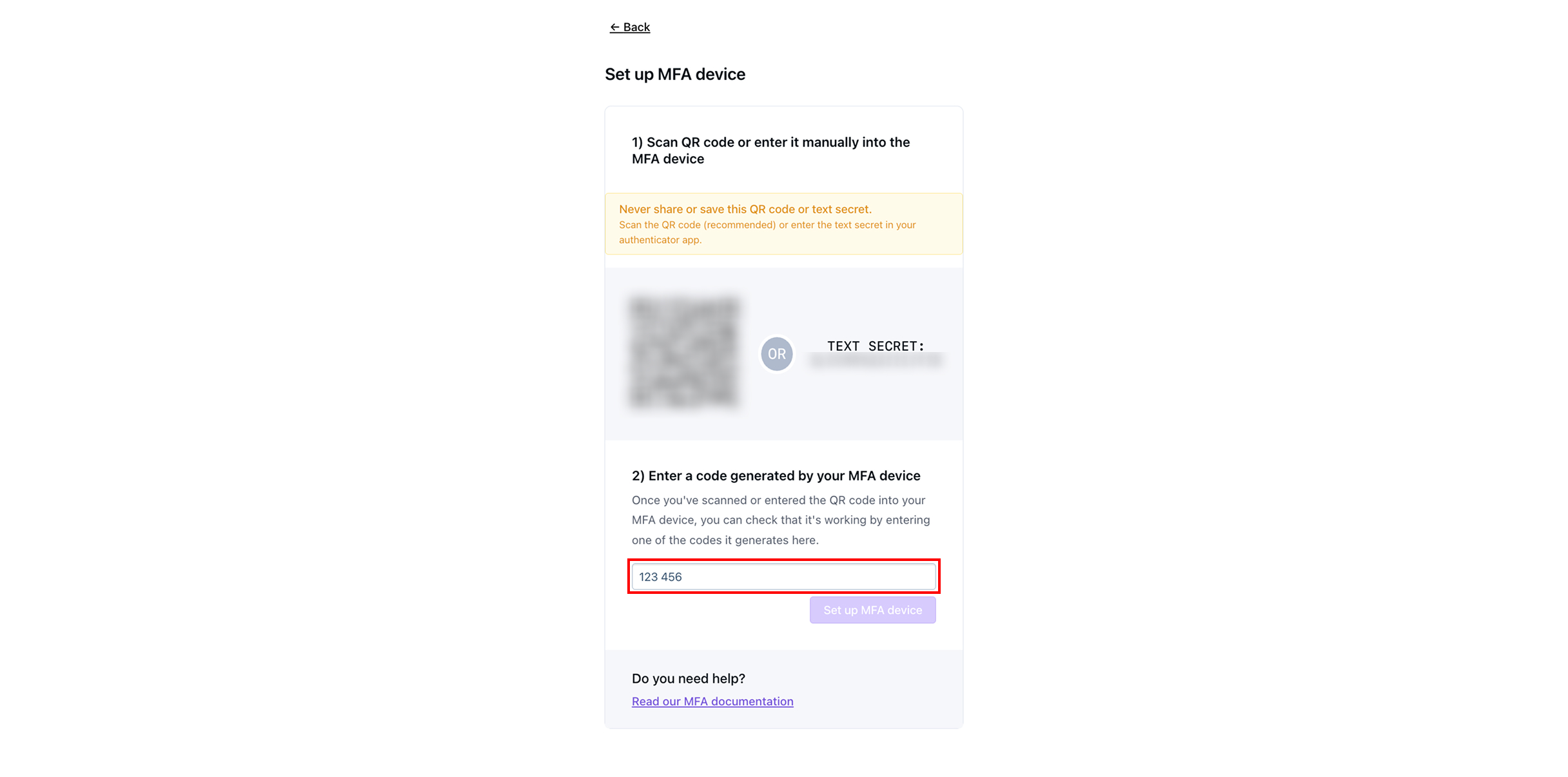
En el dispositivo de la aplicación MFA de su elección, escanee el código QR o ingrese el secreto de texto.
{% hint style="info" %}
Algunas aplicaciones estándar de autenticación de dos factores incluyen [Google Duo](https://guide.duo.com/third-party-accounts), Microsoft Authenticator, o [1Password](https://support.1password.com/one-time-passwords/?mac).
{% endhint %}
{% endstep %}
{% step %}
Ingrese el código de 6 dígitos que se muestra en el dispositivo MFA.
{% endstep %}
{% step %}
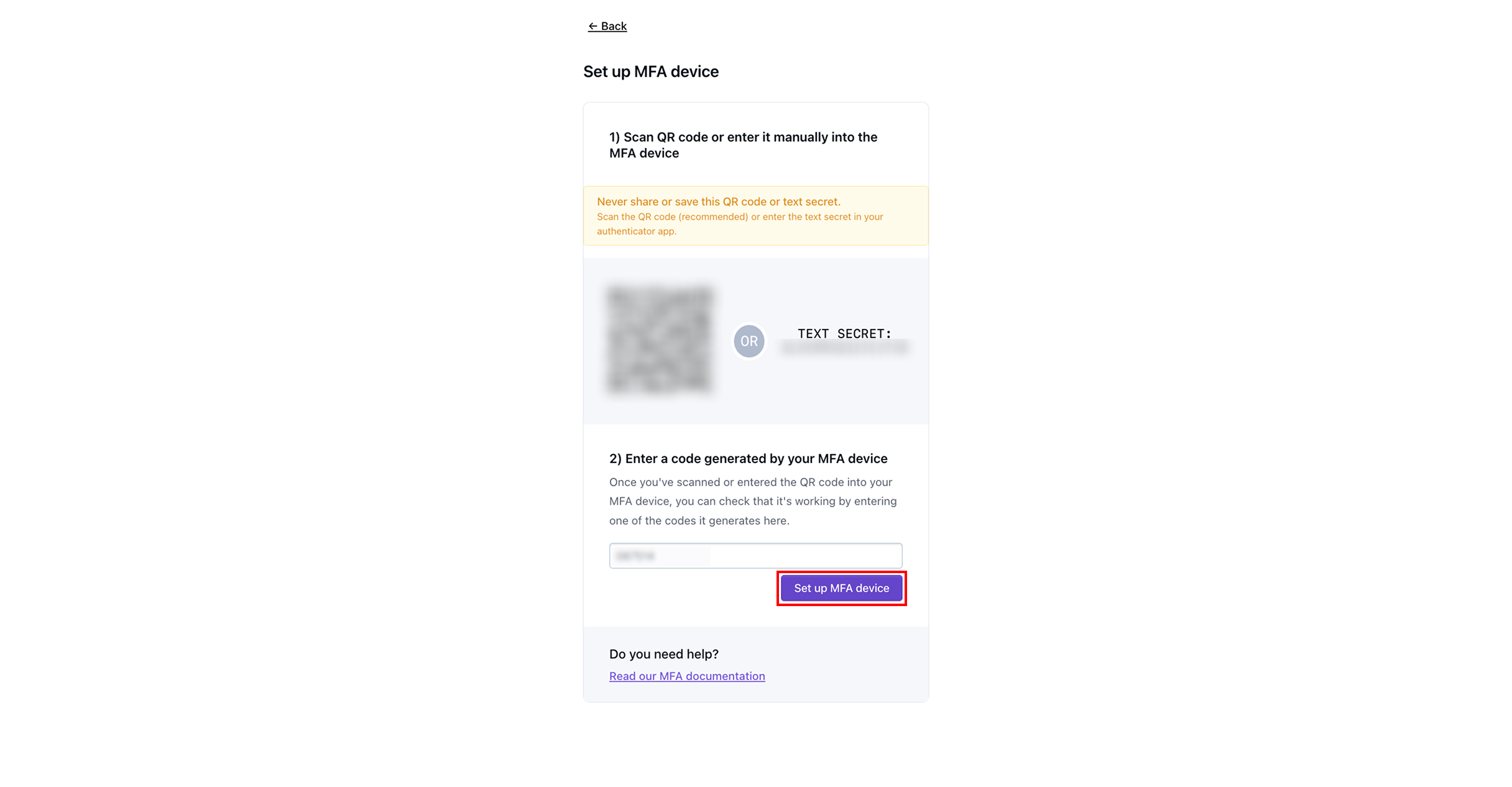
Pulse **Configurar dispositivo MFA.**
{% hint style="warning" %}
Debe tocar Configurar dispositivo MFA antes de que caduque el código ingresado desde su dispositivo MFA.
{% endhint %}
{% endstep %}
{% step %}
Pulse **Continuar.** Su cuenta ya estará completamente configurada y se le llevará al panel de Dispel.
{% endstep %}
{% step %}
#### Configurar llave de seguridad
Pulse **Configurar llave de seguridad.**
{% endstep %}
{% step %}
Guarde los códigos de recuperación tocando **Descargar como .txt** o **Copiar al portapapeles**, luego guarde los códigos de recuperación en un lugar seguro.
{% hint style="info" %}
Los códigos de recuperación le permitirán omitir temporalmente MFA para iniciar sesión en su cuenta en el futuro.
{% endhint %}
{% endstep %}
{% step %}
Una vez que haya guardado los códigos de recuperación, toque **Ya los guardé, muéstrame el siguiente paso.**
{% endstep %}
{% step %}
Ingrese un nombre para el dispositivo que utilizará como llave de seguridad.
{% endstep %}
{% step %}
Pulse **Agregar nueva llave**.
{% endstep %}
{% step %}
Conecte y active su llave. Siga los pasos para registrar su llave de seguridad.
{% endstep %}
{% step %}
Pulse **Continuar.** Su cuenta ya estará completamente configurada y se le llevará al panel de Dispel.
{% endstep %}
{% endstepper %}
## Próximos pasos
{% content-ref url="/pages/e70a0a062bfaf7848569d3cd10843757f2bc78cc" %}
[Solicitar una ventana de acceso](/documentation/documentation-es/conectarte-a-tus-sistemas/access-windows/request-an-access-window.md)
{% endcontent-ref %}
{% content-ref url="/pages/e3b73a7ae768e738ac212ca156a39a1ce4c82de4" %}
[Métodos de conexión](/documentation/documentation-es/conectarte-a-tus-sistemas/connection-methods.md)
{% endcontent-ref %}
---
# Agent Instructions
This documentation is published with GitBook. GitBook is the documentation platform designed so that both humans and AI agents can read, navigate, and reason over technical content effectively. Learn more at gitbook.com.
## Querying This Documentation
If you need additional information that is not directly available in this page, you can query the documentation by asking a question.
Perform an HTTP GET request on the following URL with the `ask` and `goal` query parameters:
```
GET https://docs.dispel.com/documentation/documentation-es/gestionar-usuarios-y-acceso/users/create-a-dispel-account.md?ask=&goal=
```
`ask` is the immediate question: it should be specific, self-contained, and written in natural language.
`goal` is what the user is ultimately trying to achieve, the reason they need the answer. Sharing it helps GitBook give you a better, more relevant answer. A goal is most helpful when it describes the outcome the user wants rather than restating the question. For example, with `ask=how do I create an API token`, a goal like `automate deployments from our CI pipeline` lets GitBook tailor the answer to that use case.
The response will contain a direct answer to the question and relevant excerpts and sources from the documentation.
Use this mechanism when the answer is not explicitly present in the current page, you need clarification or additional context, or you want to retrieve related documentation sections.







.jpg?alt=media)