> For the complete documentation index, see [llms.txt](https://docs.dispel.com/llms.txt). Markdown versions of documentation pages are available by appending `.md` to page URLs; this page is available as [Markdown](https://docs.dispel.com/documentation/documentation-ja/yztoakusesuwosuru/users/create-a-dispel-account.md).

# Dispel アカウントを作成する

## 概要

Dispel アカウントの作成は、Dispel を通じてサイトに接続するための最初のステップです。Dispel アカウントを作成するには、メールで招待を受け取っているか、Dispel 環境内の管理者から招待リンクを提供されている必要があります。

## Dispel アカウントを作成

{% stepper %}
{% step %}
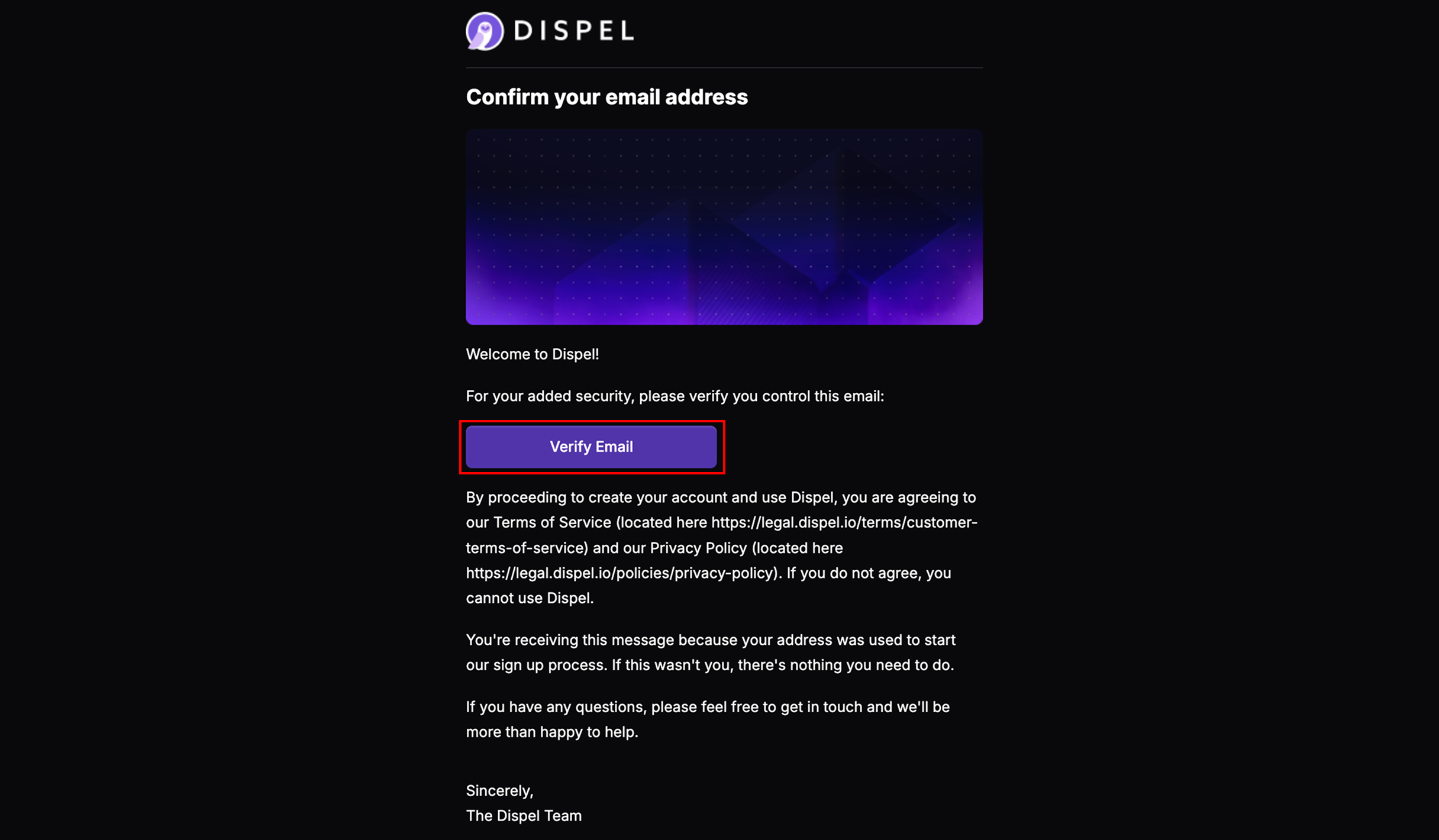
Dispel アカウントを作成するには、まず組織への招待を受ける必要があります。招待は下図のようにメールで届くか、管理者から招待リンクが提供されます。クリック **メールを確認** または、送信された招待リンクを開いてください。

<figure><img src="https://2841354894-files.gitbook.io/~/files/v0/b/gitbook-x-prod.appspot.com/o/spaces%2F5T5Fo32wwisEqZbODG7j%2Fuploads%2Fgit-blob-1169a976cdcea7466d5bbaa99f64e31e84da2c16%2FFrame%20169.jpg?alt=media" alt=""><figcaption></figcaption></figure>
{% endstep %}

{% step %}
希望する言語を選択します。

<figure><img src="https://2841354894-files.gitbook.io/~/files/v0/b/gitbook-x-prod.appspot.com/o/spaces%2F5T5Fo32wwisEqZbODG7j%2Fuploads%2Fgit-blob-2a2406a86542d8e8f866d8a7f570a3cbe997117b%2FFrame%20170.jpg?alt=media" alt=""><figcaption></figcaption></figure>
{% endstep %}

{% step %}
タップ **名前の設定を続行**.

<figure><img src="https://2841354894-files.gitbook.io/~/files/v0/b/gitbook-x-prod.appspot.com/o/spaces%2F5T5Fo32wwisEqZbODG7j%2Fuploads%2Fgit-blob-c278fe9be7c22579b2647dc1703e1bc03d7b0afc%2FFrame%20171.jpg?alt=media" alt=""><figcaption></figcaption></figure>
{% endstep %}

{% step %}
名前を入力します。

<figure><img src="https://2841354894-files.gitbook.io/~/files/v0/b/gitbook-x-prod.appspot.com/o/spaces%2F5T5Fo32wwisEqZbODG7j%2Fuploads%2Fgit-blob-235a7839720bed484f4cd1eb3db364cdc5026f0a%2FFrame%20172.jpg?alt=media" alt=""><figcaption></figcaption></figure>
{% endstep %}

{% step %}
タップ **パスワードの設定を続行**.

<figure><img src="https://2841354894-files.gitbook.io/~/files/v0/b/gitbook-x-prod.appspot.com/o/spaces%2F5T5Fo32wwisEqZbODG7j%2Fuploads%2Fgit-blob-0540f00dbbc1ff5e6981f55c3a4faf76c528b9c8%2FFrame%20173.jpg?alt=media" alt=""><figcaption></figcaption></figure>
{% endstep %}

{% step %}
Dispel 用の希望するパスワードを 2 回入力します。

<figure><img src="https://2841354894-files.gitbook.io/~/files/v0/b/gitbook-x-prod.appspot.com/o/spaces%2F5T5Fo32wwisEqZbODG7j%2Fuploads%2Fgit-blob-a97dcaad7bcceb4adefab43c618f78c2752b5c7a%2FFrame%20174.jpg?alt=media" alt=""><figcaption></figcaption></figure>
{% endstep %}

{% step %}
Dispel のプライバシーポリシーおよびデータ主体同意書に同意する場合は、チェックを入れてください。

<figure><img src="https://2841354894-files.gitbook.io/~/files/v0/b/gitbook-x-prod.appspot.com/o/spaces%2F5T5Fo32wwisEqZbODG7j%2Fuploads%2Fgit-blob-753f5f08437fbc43681ca57dded69360f594453c%2FFrame%20175.jpg?alt=media" alt=""><figcaption></figcaption></figure>
{% endstep %}

{% step %}
タップ **新しいパスワードを設定します。**

<figure><img src="https://2841354894-files.gitbook.io/~/files/v0/b/gitbook-x-prod.appspot.com/o/spaces%2F5T5Fo32wwisEqZbODG7j%2Fuploads%2Fgit-blob-fc461ed6a5428317bfb5090c4a38e723465674b6%2FFrame%20176.jpg?alt=media" alt=""><figcaption></figcaption></figure>
{% endstep %}

{% step %}
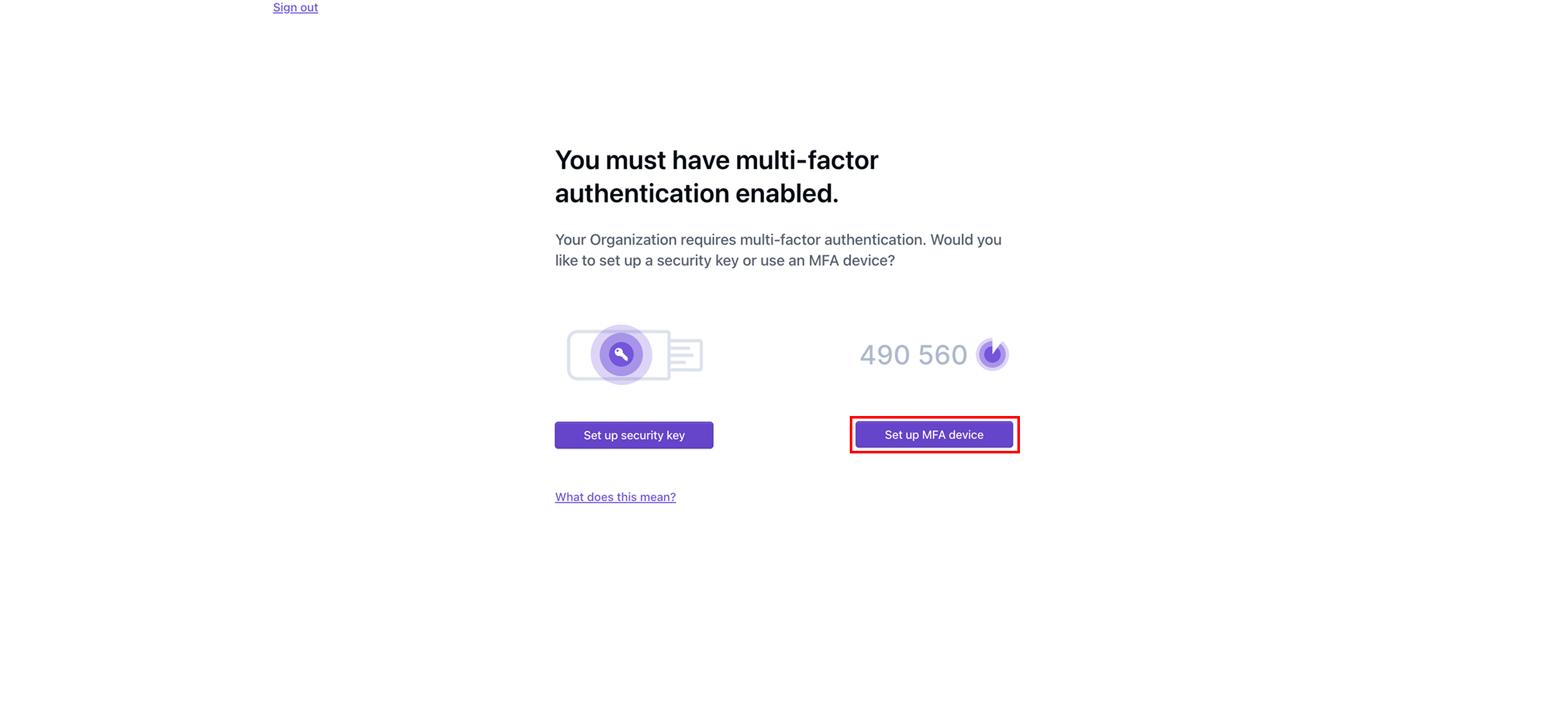
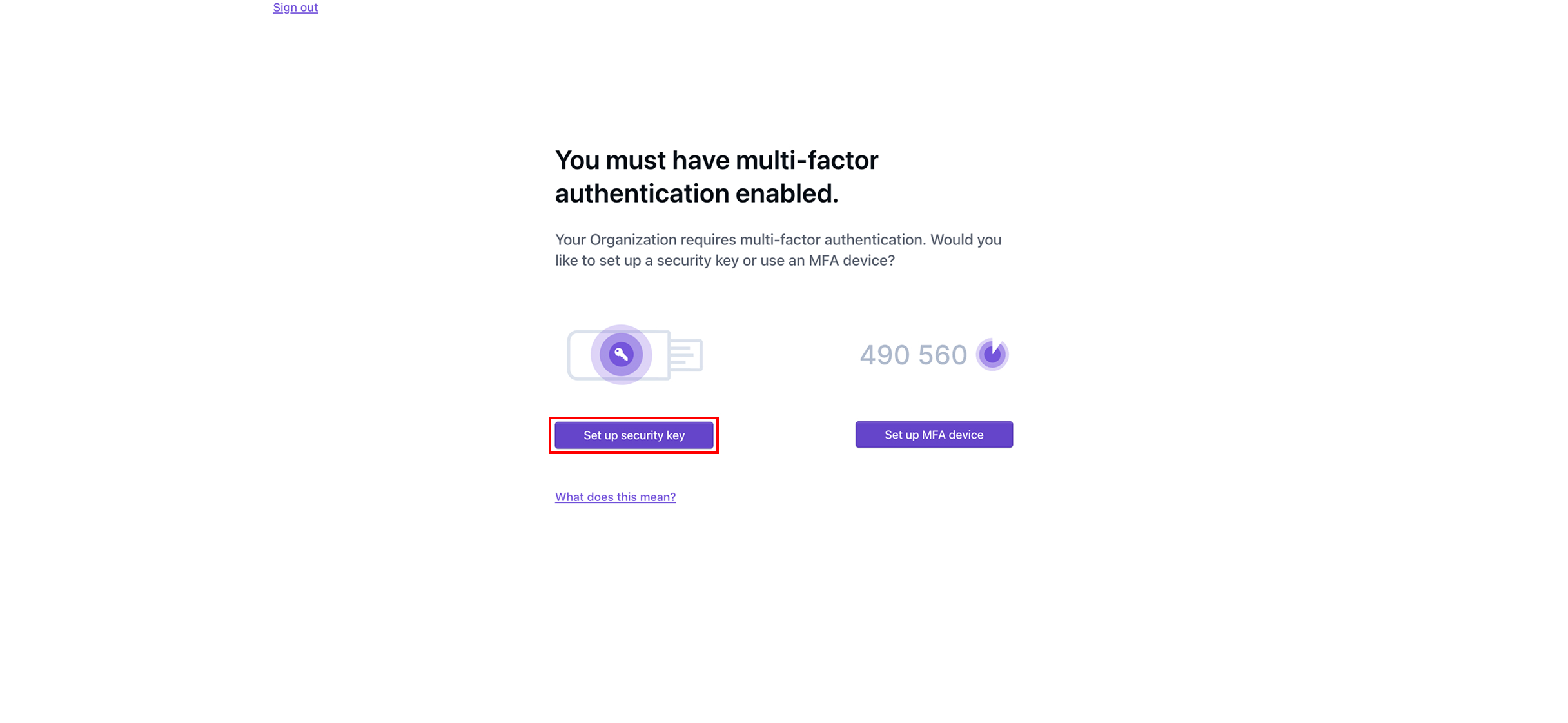
組織で多要素認証（MFA）が必須の場合、ここで MFA の設定が求められ、次のいずれかを実行できます [#set-up-mfa-device](#set-up-mfa-device "mention") または [#set-up-security-key](#set-up-security-key "mention")。組織で MFA が必須でない場合、アカウントの設定は完了しており、Dispel ダッシュボードが表示されます。
{% endstep %}

{% step %}

#### MFA デバイスを設定

タップ **MFA デバイスを設定**.

<figure><img src="https://2841354894-files.gitbook.io/~/files/v0/b/gitbook-x-prod.appspot.com/o/spaces%2F5T5Fo32wwisEqZbODG7j%2Fuploads%2Fgit-blob-8619ca6fa0094c50334b14a846d2eddf5d6d4538%2FFrame%20183.jpg?alt=media" alt=""><figcaption></figcaption></figure>
{% endstep %}

{% step %}
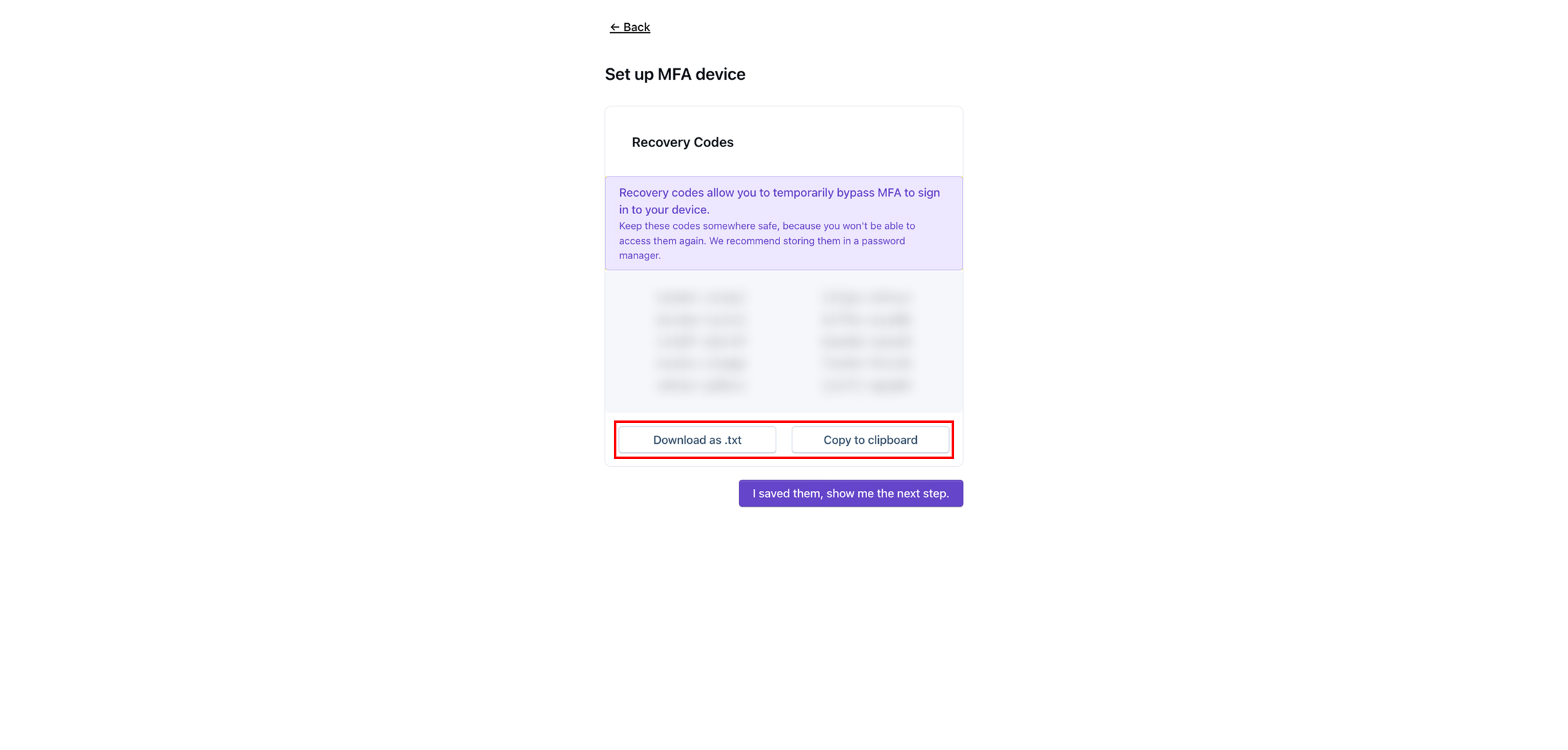
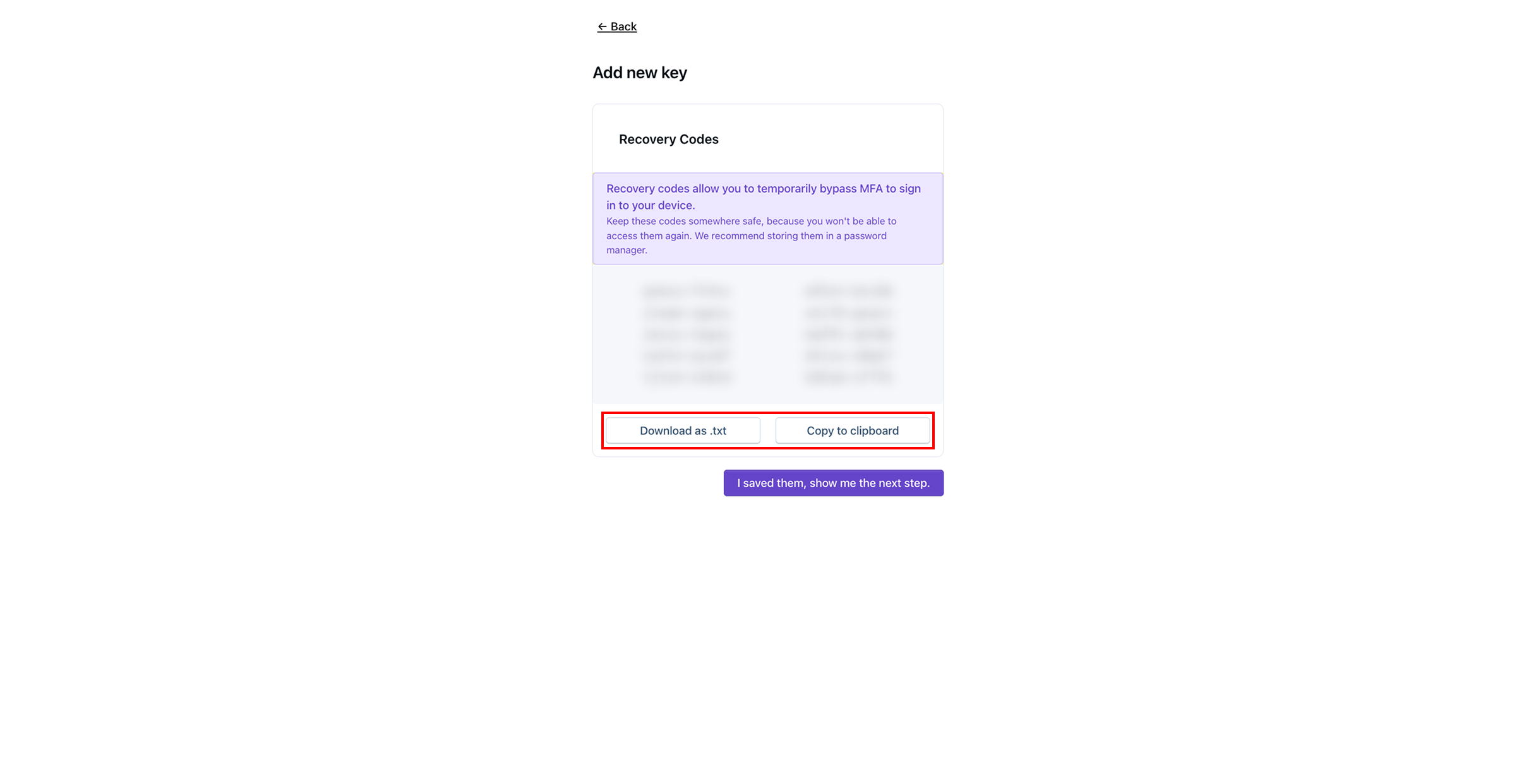
をタップしてリカバリコードを保存します **.txt としてダウンロード** または **クリップボードにコピー**、その後、リカバリコードを安全な場所に保存してください。

{% hint style="info" %}
リカバリコードを使用すると、将来アカウントにサインインする際に、MFA を一時的にバイパスできます。
{% endhint %}

<figure><img src="https://2841354894-files.gitbook.io/~/files/v0/b/gitbook-x-prod.appspot.com/o/spaces%2F5T5Fo32wwisEqZbODG7j%2Fuploads%2Fgit-blob-f5c57e3ba4d195f7bff0b90a78d2bce573f6ab71%2FFrame%20184.jpg?alt=media" alt=""><figcaption></figcaption></figure>
{% endstep %}

{% step %}
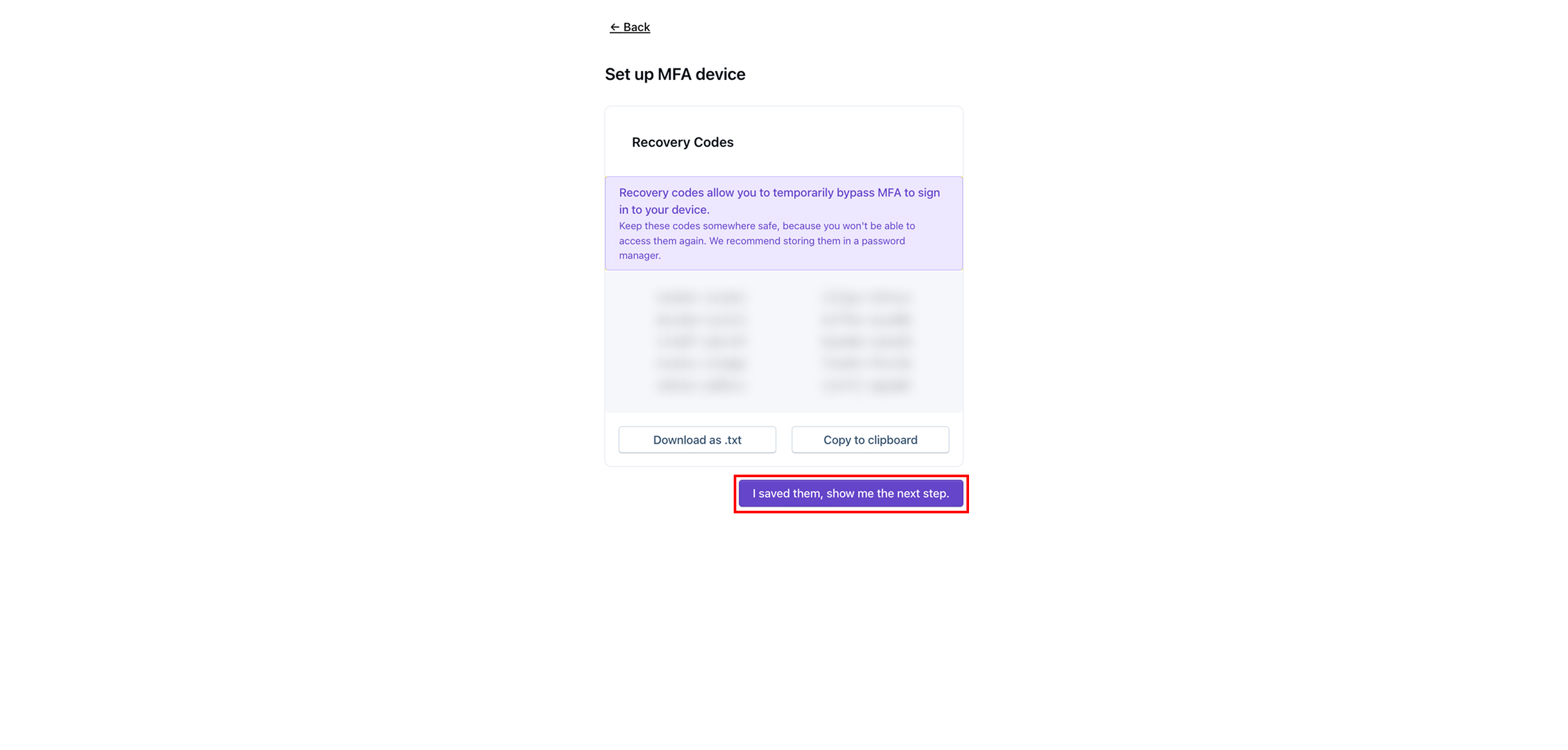
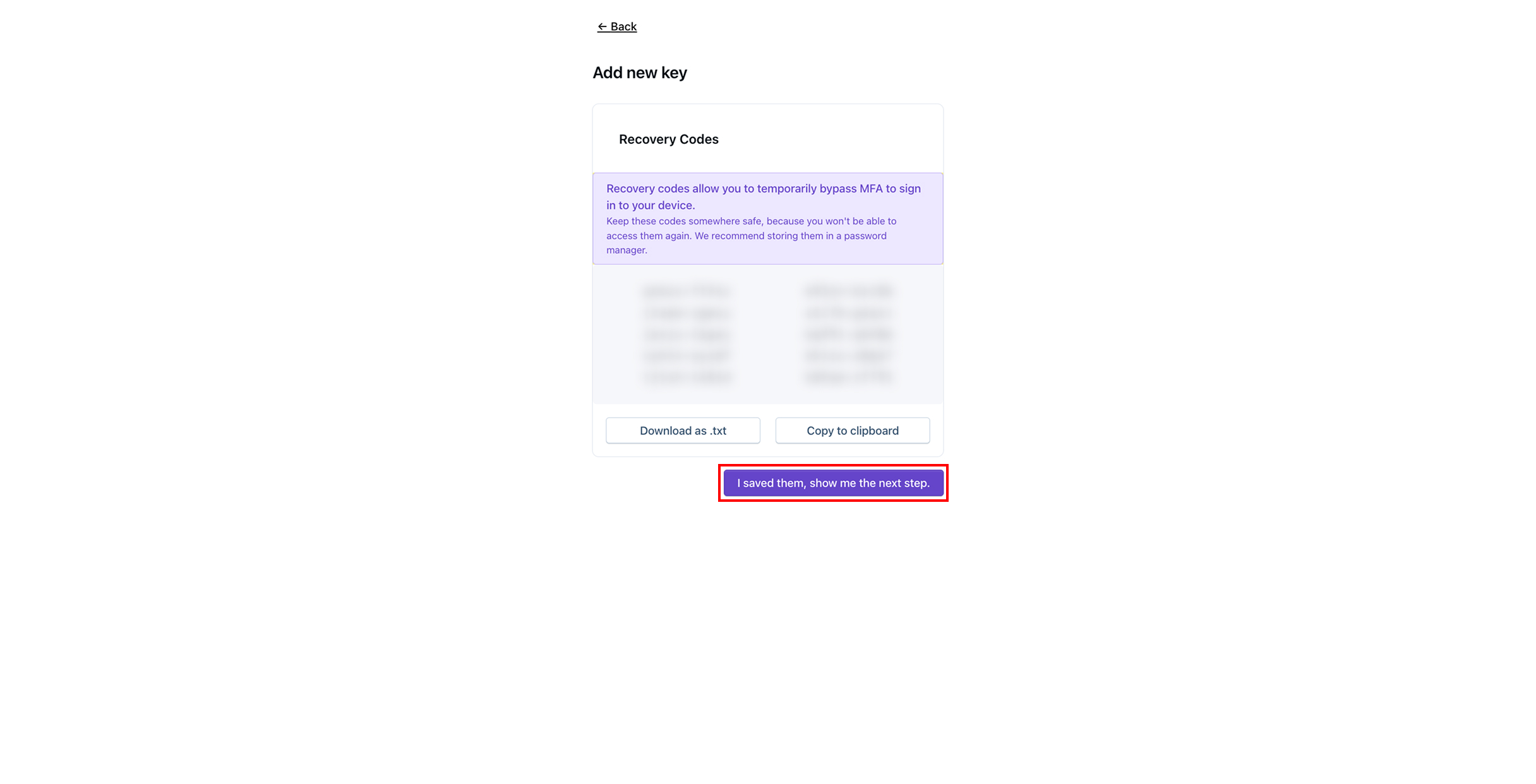
リカバリコードを保存したら、 **保存しました。次の手順を表示**

<figure><img src="https://2841354894-files.gitbook.io/~/files/v0/b/gitbook-x-prod.appspot.com/o/spaces%2F5T5Fo32wwisEqZbODG7j%2Fuploads%2Fgit-blob-be9bacf56111abb5b5a8014e353ac22b1e1b697d%2FFrame%20185.jpg?alt=media" alt=""><figcaption></figcaption></figure>
{% endstep %}

{% step %}
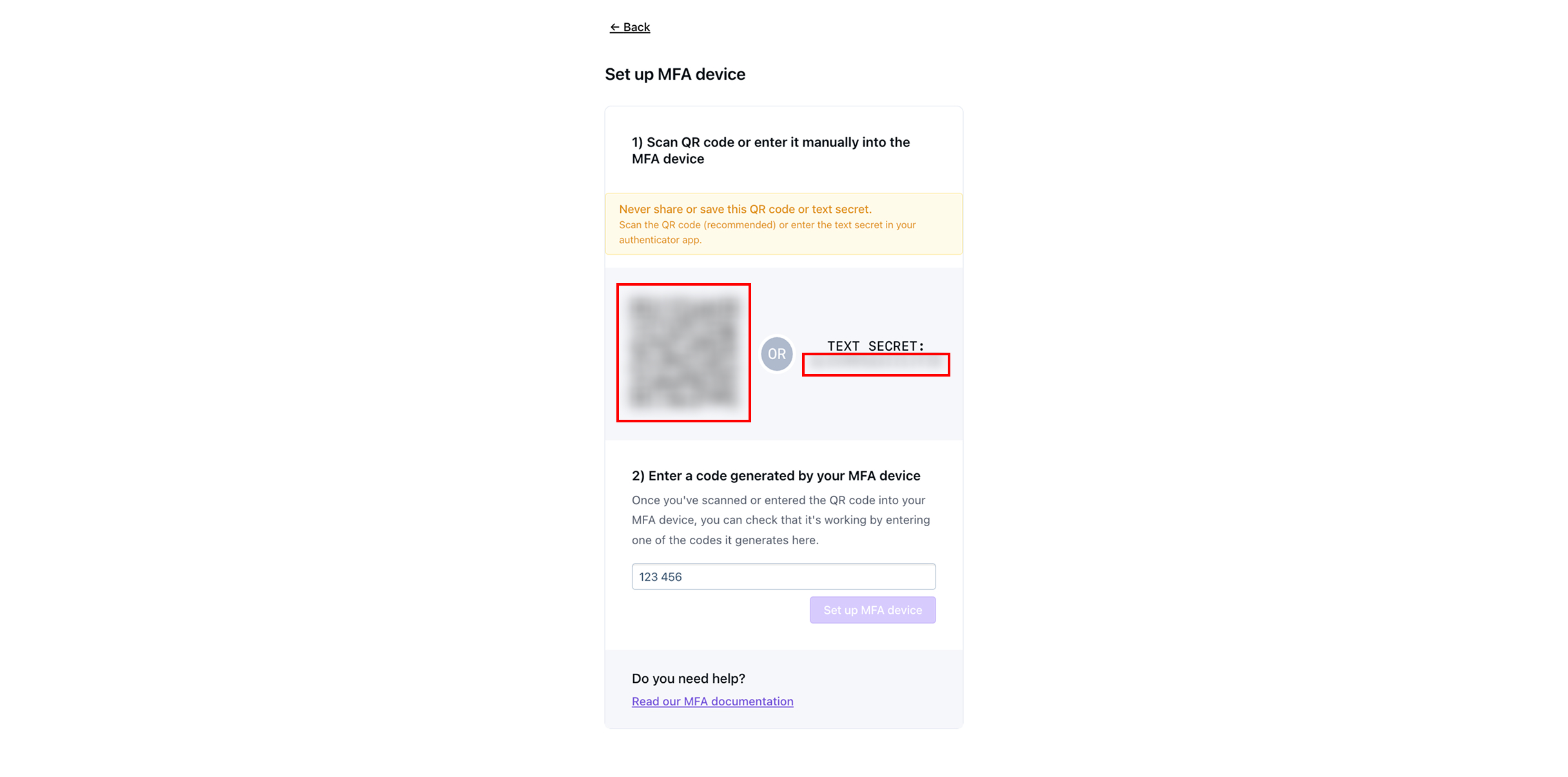
使用する MFA アプリで、QR コードをスキャンするか、テキスト形式のシークレットを入力します。

{% hint style="info" %}
一般的な二要素認証アプリには次のものがあります [Google Duo](https://guide.duo.com/third-party-accounts)、Microsoft Authenticator、または [1Password](https://support.1password.com/one-time-passwords/?mac).
{% endhint %}

<figure><img src="https://2841354894-files.gitbook.io/~/files/v0/b/gitbook-x-prod.appspot.com/o/spaces%2F5T5Fo32wwisEqZbODG7j%2Fuploads%2Fgit-blob-fe5347ddc35a2722d61ee306c51541278fc8796f%2FFrame%20186.jpg?alt=media" alt=""><figcaption></figcaption></figure>
{% endstep %}

{% step %}
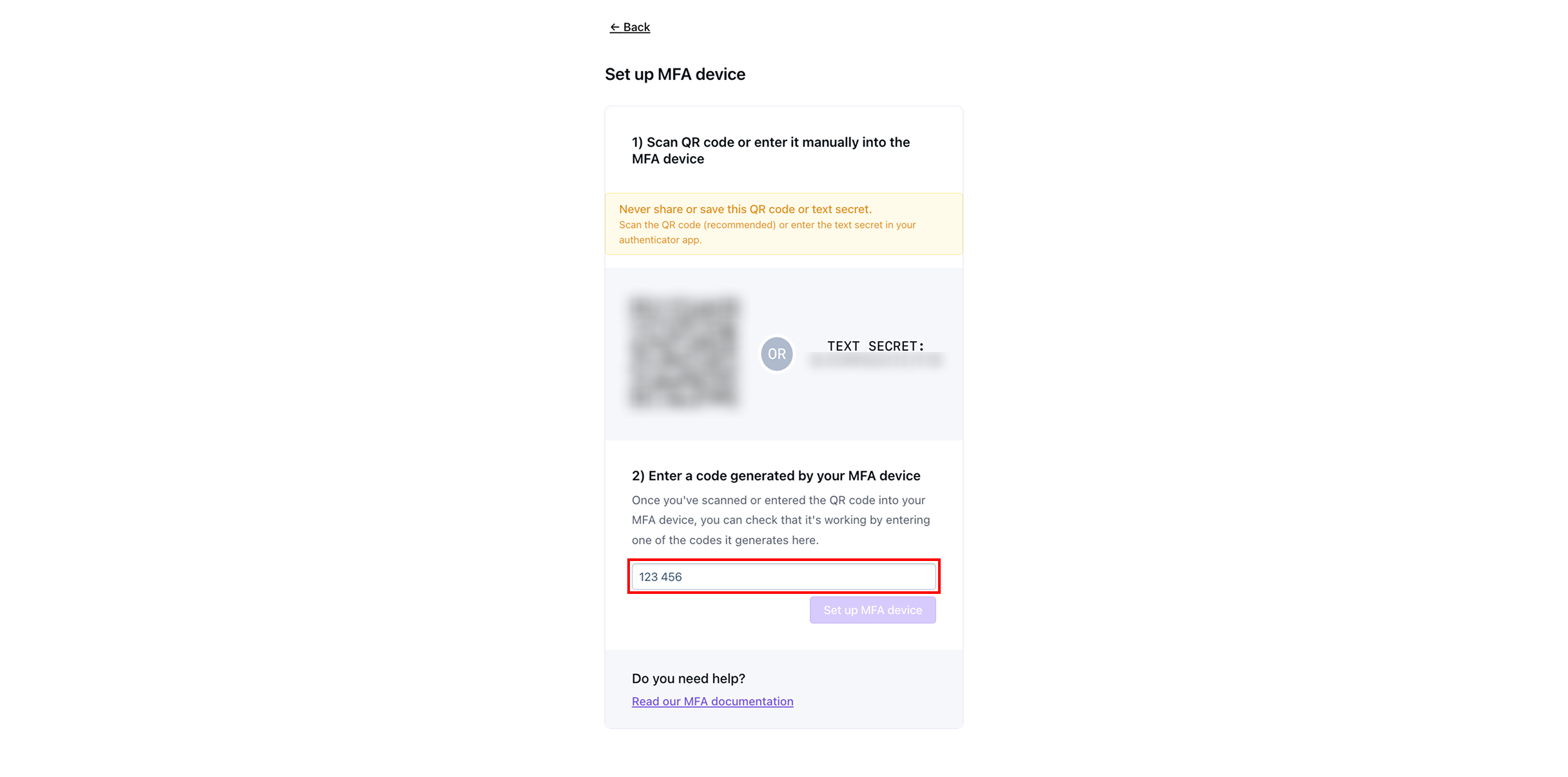
MFA デバイスに表示された 6 桁のコードを入力します。

<figure><img src="https://2841354894-files.gitbook.io/~/files/v0/b/gitbook-x-prod.appspot.com/o/spaces%2F5T5Fo32wwisEqZbODG7j%2Fuploads%2Fgit-blob-ef59c797ad060b1449bec8b942daf3dfa18d8052%2FFrame%20187.jpg?alt=media" alt=""><figcaption></figcaption></figure>
{% endstep %}

{% step %}
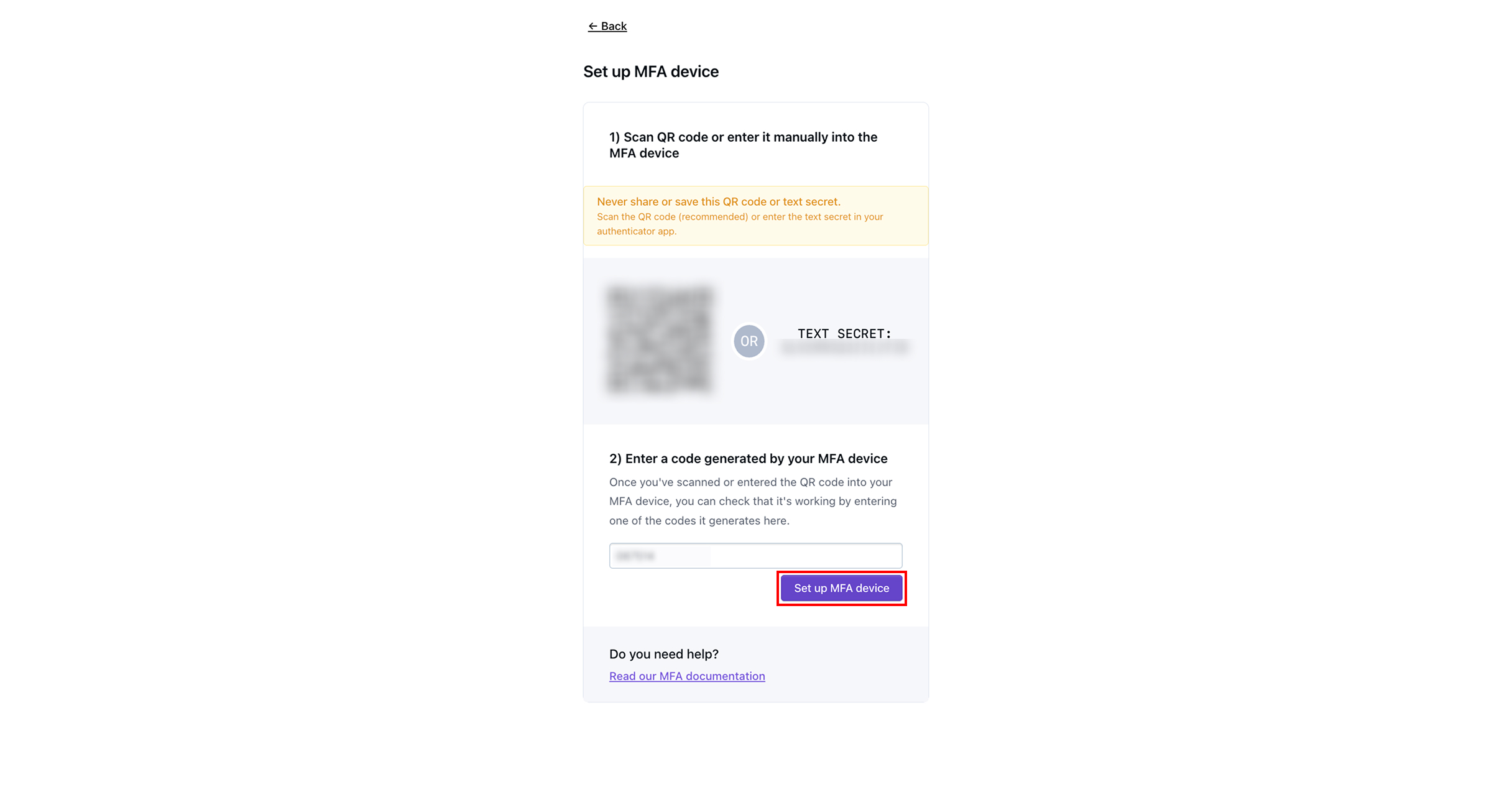
タップ **MFA デバイスを設定します。**

{% hint style="warning" %}
MFA デバイスから入力したコードの有効期限が切れる前に、\[MFA デバイスを設定] をタップする必要があります。
{% endhint %}

<figure><img src="https://2841354894-files.gitbook.io/~/files/v0/b/gitbook-x-prod.appspot.com/o/spaces%2F5T5Fo32wwisEqZbODG7j%2Fuploads%2Fgit-blob-586a2a737f080819cbf0548da0c084aeeaf68411%2FFrame%20188.jpg?alt=media" alt=""><figcaption></figcaption></figure>
{% endstep %}

{% step %}
タップ **続行** アカウントの設定は完了しており、Dispel ダッシュボードが表示されます。

<figure><img src="https://2841354894-files.gitbook.io/~/files/v0/b/gitbook-x-prod.appspot.com/o/spaces%2F5T5Fo32wwisEqZbODG7j%2Fuploads%2Fgit-blob-11cbc48dc78724d0ead780f02b6d8df189fb431b%2FFrame%20189%20(1).jpg?alt=media" alt=""><figcaption></figcaption></figure>
{% endstep %}

{% step %}

#### セキュリティキーを設定

タップ **セキュリティキーを設定します。**

<figure><img src="https://2841354894-files.gitbook.io/~/files/v0/b/gitbook-x-prod.appspot.com/o/spaces%2F5T5Fo32wwisEqZbODG7j%2Fuploads%2Fgit-blob-9f23375dfe56ed97eb72e7e9aa34685b7724b830%2FFrame%20177.jpg?alt=media" alt=""><figcaption></figcaption></figure>
{% endstep %}

{% step %}
をタップしてリカバリコードを保存します **.txt としてダウンロード** または **クリップボードにコピー**、その後、リカバリコードを安全な場所に保存してください。

{% hint style="info" %}
リカバリコードを使用すると、将来アカウントにサインインする際に、MFA を一時的にバイパスできます。
{% endhint %}

<figure><img src="https://2841354894-files.gitbook.io/~/files/v0/b/gitbook-x-prod.appspot.com/o/spaces%2F5T5Fo32wwisEqZbODG7j%2Fuploads%2Fgit-blob-f295b80a32a42f0917c4a8f826589fe7b895a788%2FFrame%20178.jpg?alt=media" alt=""><figcaption></figcaption></figure>
{% endstep %}

{% step %}
リカバリコードを保存したら、 **保存しました。次の手順を表示**

<figure><img src="https://2841354894-files.gitbook.io/~/files/v0/b/gitbook-x-prod.appspot.com/o/spaces%2F5T5Fo32wwisEqZbODG7j%2Fuploads%2Fgit-blob-3356d0a4ed021f9d633ab34f7c86134a90a60d6b%2FFrame%20179.jpg?alt=media" alt=""><figcaption></figcaption></figure>
{% endstep %}

{% step %}
セキュリティキーとして使用するデバイスの名前を入力します。

<figure><img src="https://2841354894-files.gitbook.io/~/files/v0/b/gitbook-x-prod.appspot.com/o/spaces%2F5T5Fo32wwisEqZbODG7j%2Fuploads%2Fgit-blob-a18190e4c3fef2c6b034f6c392405ac40e821a6c%2FFrame%20180.jpg?alt=media" alt=""><figcaption></figcaption></figure>
{% endstep %}

{% step %}
タップ **新しいキーを追加**.

<figure><img src="https://2841354894-files.gitbook.io/~/files/v0/b/gitbook-x-prod.appspot.com/o/spaces%2F5T5Fo32wwisEqZbODG7j%2Fuploads%2Fgit-blob-b3dd2e6da6b63a8ac3df9c8ca172f73ec7c627a9%2FFrame%20181.jpg?alt=media" alt=""><figcaption></figcaption></figure>
{% endstep %}

{% step %}
キーを接続して有効化してください。手順に従ってセキュリティキーを登録します。

<figure><img src="https://2841354894-files.gitbook.io/~/files/v0/b/gitbook-x-prod.appspot.com/o/spaces%2F5T5Fo32wwisEqZbODG7j%2Fuploads%2Fgit-blob-ec51f3824a437a876b65b8df0a6198cb76cfc64f%2FFrame%20182.jpg?alt=media" alt=""><figcaption></figcaption></figure>
{% endstep %}

{% step %}
タップ **続行** アカウントの設定は完了しており、Dispel ダッシュボードが表示されます。

<figure><img src="https://2841354894-files.gitbook.io/~/files/v0/b/gitbook-x-prod.appspot.com/o/spaces%2F5T5Fo32wwisEqZbODG7j%2Fuploads%2Fgit-blob-11cbc48dc78724d0ead780f02b6d8df189fb431b%2FFrame%20189%20(1).jpg?alt=media" alt=""><figcaption></figcaption></figure>
{% endstep %}
{% endstepper %}

## 次の手順

{% content-ref url="/pages/1b85d8e2a28b92fb50ba1e3c1e698b770af64907" %}
[アクセス ウィンドウをリクエストする](/documentation/documentation-ja/shisutemunisuru/access-windows/request-an-access-window.md)
{% endcontent-ref %}

{% content-ref url="/pages/7240ccdfbbf2065e3286495d8f2d2d3a2e39eb82" %}
[接続方法](/documentation/documentation-ja/shisutemunisuru/connection-methods.md)
{% endcontent-ref %}


---

# Agent Instructions
This documentation is published with GitBook. GitBook is the documentation platform designed so that both humans and AI agents can read, navigate, and reason over technical content effectively. Learn more at gitbook.com.

## Querying This Documentation
If you need additional information that is not directly available in this page, you can query the documentation by asking a question.

Perform an HTTP GET request on the following URL with the `ask` and `goal` query parameters:

```
GET https://docs.dispel.com/documentation/documentation-ja/yztoakusesuwosuru/users/create-a-dispel-account.md?ask=<question>&goal=<user_goal>
```

`ask` is the immediate question: it should be specific, self-contained, and written in natural language.
`goal` is what the user is ultimately trying to achieve, the reason they need the answer. Sharing it helps GitBook give you a better, more relevant answer. A goal is most helpful when it describes the outcome the user wants rather than restating the question. For example, with `ask=how do I create an API token`, a goal like `automate deployments from our CI pipeline` lets GitBook tailor the answer to that use case.

The response will contain a direct answer to the question and relevant excerpts and sources from the documentation.

Use this mechanism when the answer is not explicitly present in the current page, you need clarification or additional context, or you want to retrieve related documentation sections.