> For the complete documentation index, see [llms.txt](https://docs.dispel.com/llms.txt). Markdown versions of documentation pages are available by appending `.md` to page URLs; this page is available as [Markdown](https://docs.dispel.com/documentation/documentation-zh/kai-shi-shi-yong/getting-started-with-dispel/org-admin-quick-start-guide.md).
# 组织管理员快速入门指南
组织管理员的首次使用路径:设置账户和 MFA,推送子网,创建设施和设备,授予访问权限,并验证首次连接。
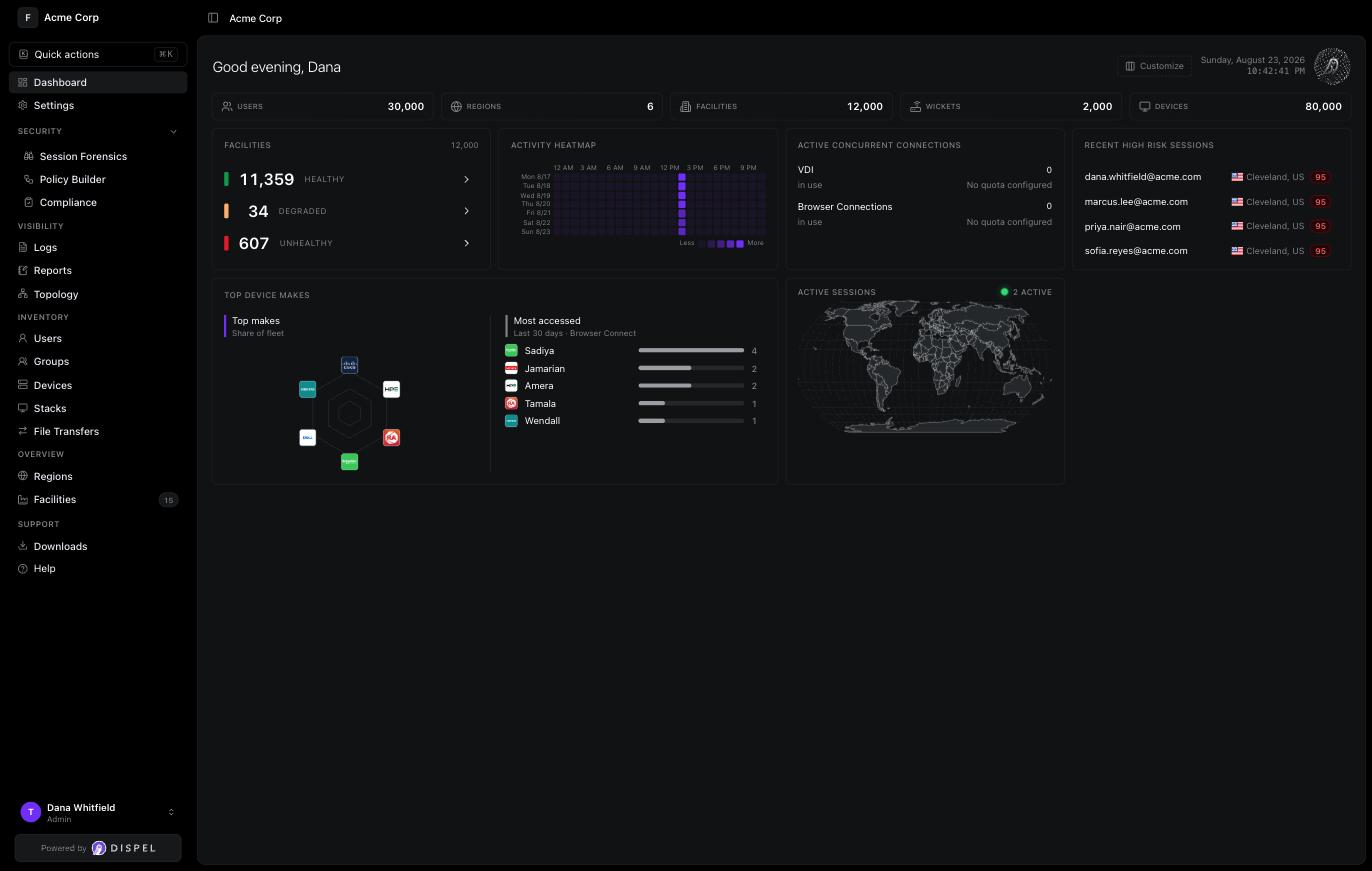
作为组织管理员,您需要设置供其他所有人连接的部署。本指南将按各项设置之间的依赖顺序,带您从首次登录一路完成连接配置。登录后,您会进入仪表板,其中汇总了用户、区域、设施、Wicket 和设备信息,以及设施运行状况和活动会话。
## 第 1 步:设置您的账户和 MFA
从 Dispel 发送到您邮箱的邀请开始。创建账户、设置密码并注册一种多重身份验证方式,即可访问 [**仪表板**](https://app.dispel.com).
{% content-ref url="/pages/dca68365b59b60a2e1fd7536b6d973fdb2494b92" %}
[创建 Dispel 账户](https://docs.dispel.com/documentation/documentation-zh/guan-li-yong-hu-he-fang-wen/users/create-a-dispel-account.md)
{% endcontent-ref %}
## 第 2 步:了解区域和 Wicket
区域是设施所在的远程访问网络,而 Wicket 是将设施连接到该区域的设备。作为组织管理员,您需要自行设置两者。您的角色允许创建区域和 Wicket,因此您可以自行配置,而不必逐一联系 Dispel 安排。开始构建之前,请先了解它们如何协同工作。
{% content-ref url="/pages/2d2a6547309955aac0880856d0ff320d0d8d6841" %}
[部署基础架构](https://docs.dispel.com/documentation/documentation-zh/gou-jian-ni-de-huan-jing/infrastructure/deployment-infrastructure.md)
{% endcontent-ref %}
## 第 3 步:将子网推送到 Wicket
使用 CIDR 表示法,将子网分配给对应的 Wicket。请先推送子网,再向其中添加设备,这样才能通过 Wicket 访问这些设备。
{% content-ref url="/pages/9d099e41a3f3ef7fd5caa73d9a36cb44b8325512" %}
[子网管理](https://docs.dispel.com/documentation/documentation-zh/gou-jian-ni-de-huan-jing/infrastructure/deployment-infrastructure/wickets/subnet-management.md)
{% endcontent-ref %}
## 第 4 步:创建设施
设施用于整理某个区域内的用户和设备。打开 [**设施**](https://app.dispel.com/facilities),点击 **创建新设施**,然后选择区域并输入设施名称。
{% content-ref url="/pages/464b5289aba154acf5472940d97aa9bada986e84" %}
[设施](https://docs.dispel.com/documentation/documentation-zh/gou-jian-ni-de-huan-jing/infrastructure/deployment-infrastructure/facilities.md)
{% endcontent-ref %}
## 第 5 步:创建设备
在所属设施下添加设备,并设置用户访问该设备时使用的端口和协议。您在设备 ACL 中授予的正是这些端口和协议的访问权限。
{% content-ref url="/pages/6f312bebf6e37ff4883c137ad794d2213bb46f58" %}
[添加设备](https://docs.dispel.com/documentation/documentation-zh/gou-jian-ni-de-huan-jing/infrastructure/device-management/create-a-device.md)
{% endcontent-ref %}
## 第 6 步:启用连接方式
选择用户访问设备的方式。为该区域构建 Virtual Desktop 堆栈,或为该区域启用 Browser Connect,然后针对每台设备单独开启。
{% content-ref url="/pages/a160744688d8ee713605dc64405ff54c73c334d3" %}
[堆栈](https://docs.dispel.com/documentation/documentation-zh/lian-jie-dao-ni-de-xi-tong/connection-methods/virtual-desktops/stacks.md)
{% endcontent-ref %}
{% content-ref url="/pages/5c18923c3f14db7d77205f439c70fa1951c1303f" %}
[为某个区域启用浏览器连接](https://docs.dispel.com/documentation/documentation-zh/lian-jie-dao-ni-de-xi-tong/connection-methods/browser-connect/enable-browser-connect-for-a-region.md)
{% endcontent-ref %}
## 第 7 步:邀请用户
邀请需要连接的人员加入组织。其角色决定了他们初始拥有的组织权限。
{% content-ref url="/pages/0101538b70650d9cff9c2e8212cb675324bd7c29" %}
[邀请用户](https://docs.dispel.com/documentation/documentation-zh/guan-li-yong-hu-he-fang-wen/users/invite-a-user.md)
{% endcontent-ref %}
## 第 8 步:将用户添加到设施
将用户添加到其设备所在的设施。先将用户添加到设施,之后才能授予设备 ACL 权限,并将其纳入该设施的访问时段。
{% content-ref url="/pages/b0a3f52a14be3ee443bd67ebeac3a142ac939f42" %}
[向设施添加用户](https://docs.dispel.com/documentation/documentation-zh/gou-jian-ni-de-huan-jing/infrastructure/deployment-infrastructure/facilities/add-a-user-to-a-facility.md)
{% endcontent-ref %}
## 第 9 步:设置设备 ACL
按端口和协议分别授予用户访问设备的权限,确保他们只能访问您指定的内容。
{% content-ref url="/pages/2079edf58006951f816599ba0b5802c85fadd53a" %}
[设备访问(ACL)](https://docs.dispel.com/documentation/documentation-zh/gou-jian-ni-de-huan-jing/infrastructure/device-management/device-access-acls.md)
{% endcontent-ref %}
## 第 10 步:创建访问时段
如果您的组织要求连接时必须处于访问时段内,请为相应设施创建访问时段。作为管理员,您可以直接创建时段;添加到时段中的成员将在您安排的时间段内获得访问权限。
{% content-ref url="/pages/afb428a2ea574b5c8dbf5444697a63d7b97f2196" %}
[创建已批准的访问窗口](https://docs.dispel.com/documentation/documentation-zh/lian-jie-dao-ni-de-xi-tong/access-windows/create-an-approved-access-window.md)
{% endcontent-ref %}
## 第 11 步:验证首次连接
亲自连接,端到端确认整个连接流程。预留一个 Virtual Desktop,或启动 Browser Connect 会话,然后访问设备。
{% content-ref url="/pages/e61952b40da500d8d262a80973c98121ecc75335" %}
[预留虚拟桌面(管理员)](https://docs.dispel.com/documentation/documentation-zh/lian-jie-dao-ni-de-xi-tong/connection-methods/virtual-desktops/reserve-a-virutal-desktop-admin.md)
{% endcontent-ref %}
{% content-ref url="/pages/7ea979971cc457a2790f5ce633da16e7aae92dad" %}
[连接到浏览器连接会话(管理员)](https://docs.dispel.com/documentation/documentation-zh/lian-jie-dao-ni-de-xi-tong/connection-methods/browser-connect/connect-to-a-browser-connect-session-admin.md)
{% endcontent-ref %}
## 接下来
如需一次管理多名人员,请通过以下方式分配设备和访问时段: [组织组和设施组](https://docs.dispel.com/documentation/documentation-zh/guan-li-yong-hu-he-fang-wen/groups.md)。如需管理用户的登录方式,请设置 [策略构建器](https://docs.dispel.com/documentation/documentation-zh/bao-hu-yu-zhi-li/policy-builder.md).
---
# Agent Instructions
This documentation is published with GitBook. GitBook is the documentation platform designed so that both humans and AI agents can read, navigate, and reason over technical content effectively. Learn more at gitbook.com.
## Querying This Documentation
If you need additional information that is not directly available in this page, you can query the documentation by asking a question.
Perform an HTTP GET request on the following URL with the `ask` and `goal` query parameters:
```
GET https://docs.dispel.com/documentation/documentation-zh/kai-shi-shi-yong/getting-started-with-dispel/org-admin-quick-start-guide.md?ask=&goal=
```
`ask` is the immediate question: it should be specific, self-contained, and written in natural language.
`goal` is what the user is ultimately trying to achieve, the reason they need the answer. Sharing it helps GitBook give you a better, more relevant answer. A goal is most helpful when it describes the outcome the user wants rather than restating the question. For example, with `ask=how do I create an API token`, a goal like `automate deployments from our CI pipeline` lets GitBook tailor the answer to that use case.
The response will contain a direct answer to the question and relevant excerpts and sources from the documentation.
Use this mechanism when the answer is not explicitly present in the current page, you need clarification or additional context, or you want to retrieve related documentation sections.