> For the complete documentation index, see [llms.txt](https://docs.dispel.com/llms.txt). Markdown versions of documentation pages are available by appending `.md` to page URLs; this page is available as [Markdown](https://docs.dispel.com/manage-users-and-access/users/create-a-dispel-account.md).

# Create a Dispel Account

## Overview

Dispel account creation is the first step in connecting to your site through Dispel. In order to create a Dispel account, you must have received an invitation via email or have been provided an invite link from an admin within your Dispel deployment.

## Create a Dispel Account

{% stepper %}
{% step %}
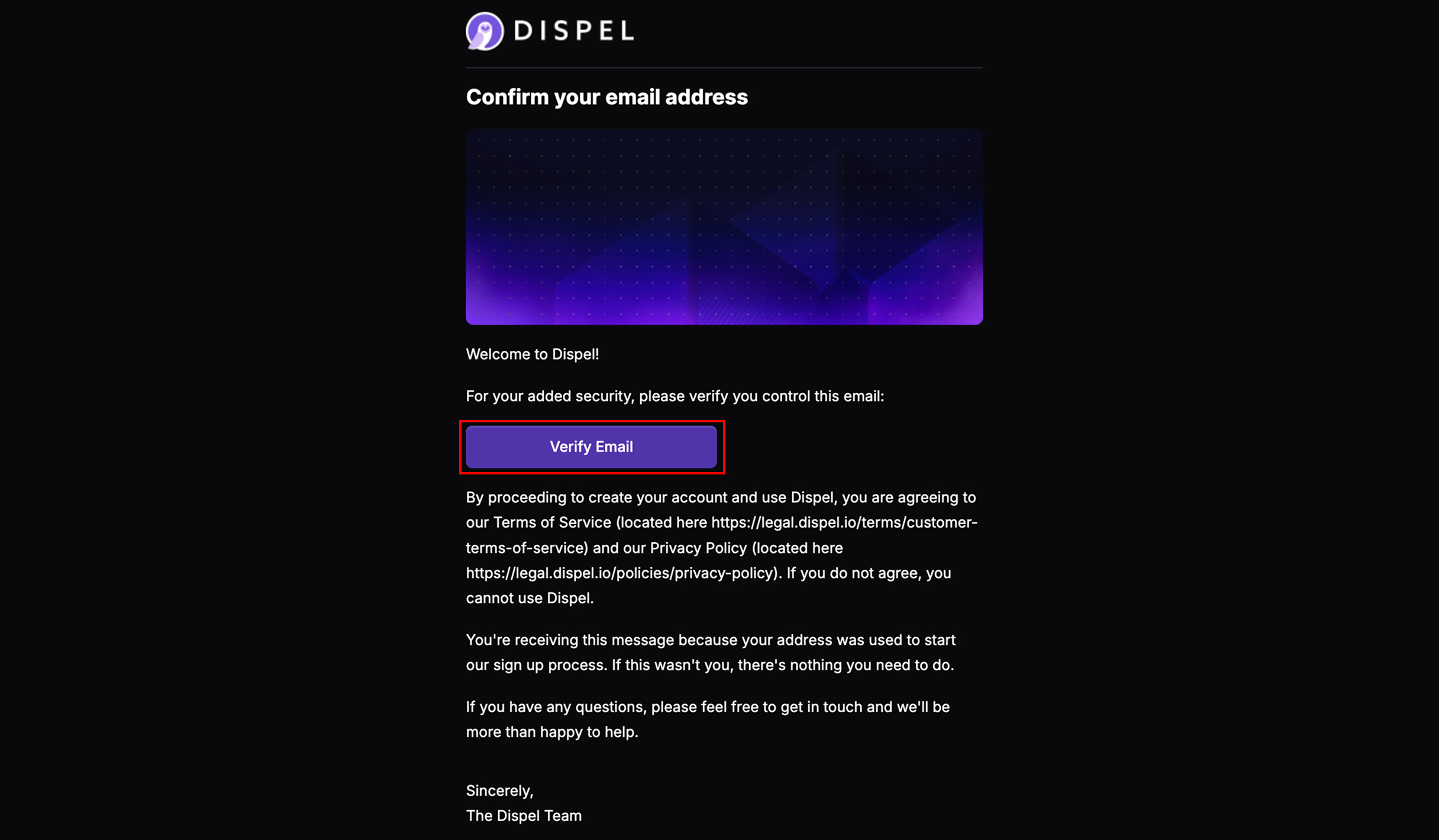
To create a Dispel account, you must first be invited to an organization. You will receive an invitation via email, as seen below, or be provided an invite link by an admin. Click **Verify Email** or open the invite link you have been sent.

<figure><img src="https://3566323743-files.gitbook.io/~/files/v0/b/gitbook-x-prod.appspot.com/o/spaces%2F5T5Fo32wwisEqZbODG7j%2Fuploads%2Fgit-blob-1169a976cdcea7466d5bbaa99f64e31e84da2c16%2FFrame%20169.jpg?alt=media" alt=""><figcaption></figcaption></figure>
{% endstep %}

{% step %}
Select your desired language.

<figure><img src="https://3566323743-files.gitbook.io/~/files/v0/b/gitbook-x-prod.appspot.com/o/spaces%2F5T5Fo32wwisEqZbODG7j%2Fuploads%2Fgit-blob-2a2406a86542d8e8f866d8a7f570a3cbe997117b%2FFrame%20170.jpg?alt=media" alt=""><figcaption></figcaption></figure>
{% endstep %}

{% step %}
Tap **Continue to set your name**.

<figure><img src="https://3566323743-files.gitbook.io/~/files/v0/b/gitbook-x-prod.appspot.com/o/spaces%2F5T5Fo32wwisEqZbODG7j%2Fuploads%2Fgit-blob-c278fe9be7c22579b2647dc1703e1bc03d7b0afc%2FFrame%20171.jpg?alt=media" alt=""><figcaption></figcaption></figure>
{% endstep %}

{% step %}
Input your name.

<figure><img src="https://3566323743-files.gitbook.io/~/files/v0/b/gitbook-x-prod.appspot.com/o/spaces%2F5T5Fo32wwisEqZbODG7j%2Fuploads%2Fgit-blob-235a7839720bed484f4cd1eb3db364cdc5026f0a%2FFrame%20172.jpg?alt=media" alt=""><figcaption></figcaption></figure>
{% endstep %}

{% step %}
Tap **Continue to set your password**.

<figure><img src="https://3566323743-files.gitbook.io/~/files/v0/b/gitbook-x-prod.appspot.com/o/spaces%2F5T5Fo32wwisEqZbODG7j%2Fuploads%2Fgit-blob-0540f00dbbc1ff5e6981f55c3a4faf76c528b9c8%2FFrame%20173.jpg?alt=media" alt=""><figcaption></figcaption></figure>
{% endstep %}

{% step %}
Input the desired password for Dispel twice.

<figure><img src="https://3566323743-files.gitbook.io/~/files/v0/b/gitbook-x-prod.appspot.com/o/spaces%2F5T5Fo32wwisEqZbODG7j%2Fuploads%2Fgit-blob-a97dcaad7bcceb4adefab43c618f78c2752b5c7a%2FFrame%20174.jpg?alt=media" alt=""><figcaption></figcaption></figure>
{% endstep %}

{% step %}
Check to acknowledge Dispel's Privacy Policy and Data Subject Consent Form.

<figure><img src="https://3566323743-files.gitbook.io/~/files/v0/b/gitbook-x-prod.appspot.com/o/spaces%2F5T5Fo32wwisEqZbODG7j%2Fuploads%2Fgit-blob-753f5f08437fbc43681ca57dded69360f594453c%2FFrame%20175.jpg?alt=media" alt=""><figcaption></figcaption></figure>
{% endstep %}

{% step %}
Tap **Set new password.**

<figure><img src="https://3566323743-files.gitbook.io/~/files/v0/b/gitbook-x-prod.appspot.com/o/spaces%2F5T5Fo32wwisEqZbODG7j%2Fuploads%2Fgit-blob-fc461ed6a5428317bfb5090c4a38e723465674b6%2FFrame%20176.jpg?alt=media" alt=""><figcaption></figcaption></figure>
{% endstep %}

{% step %}
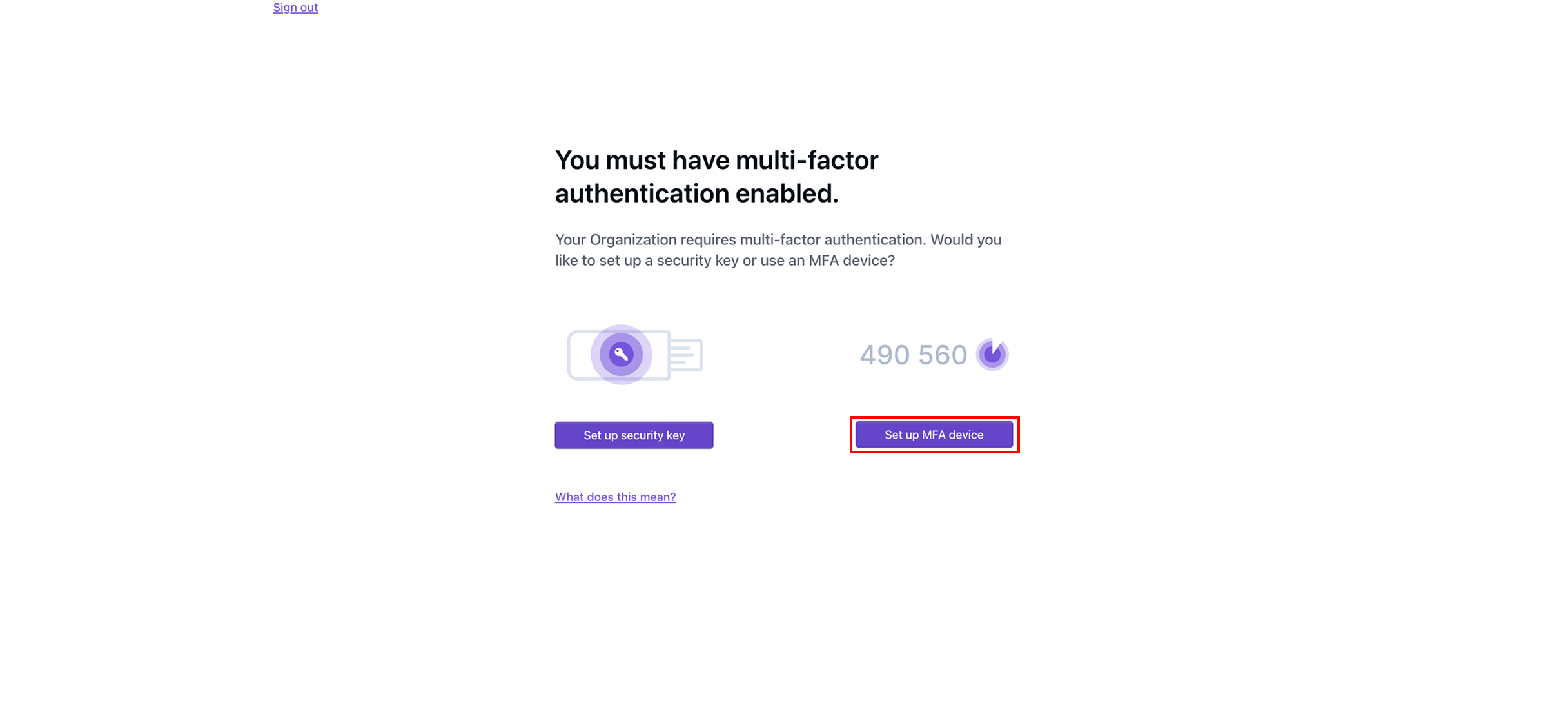
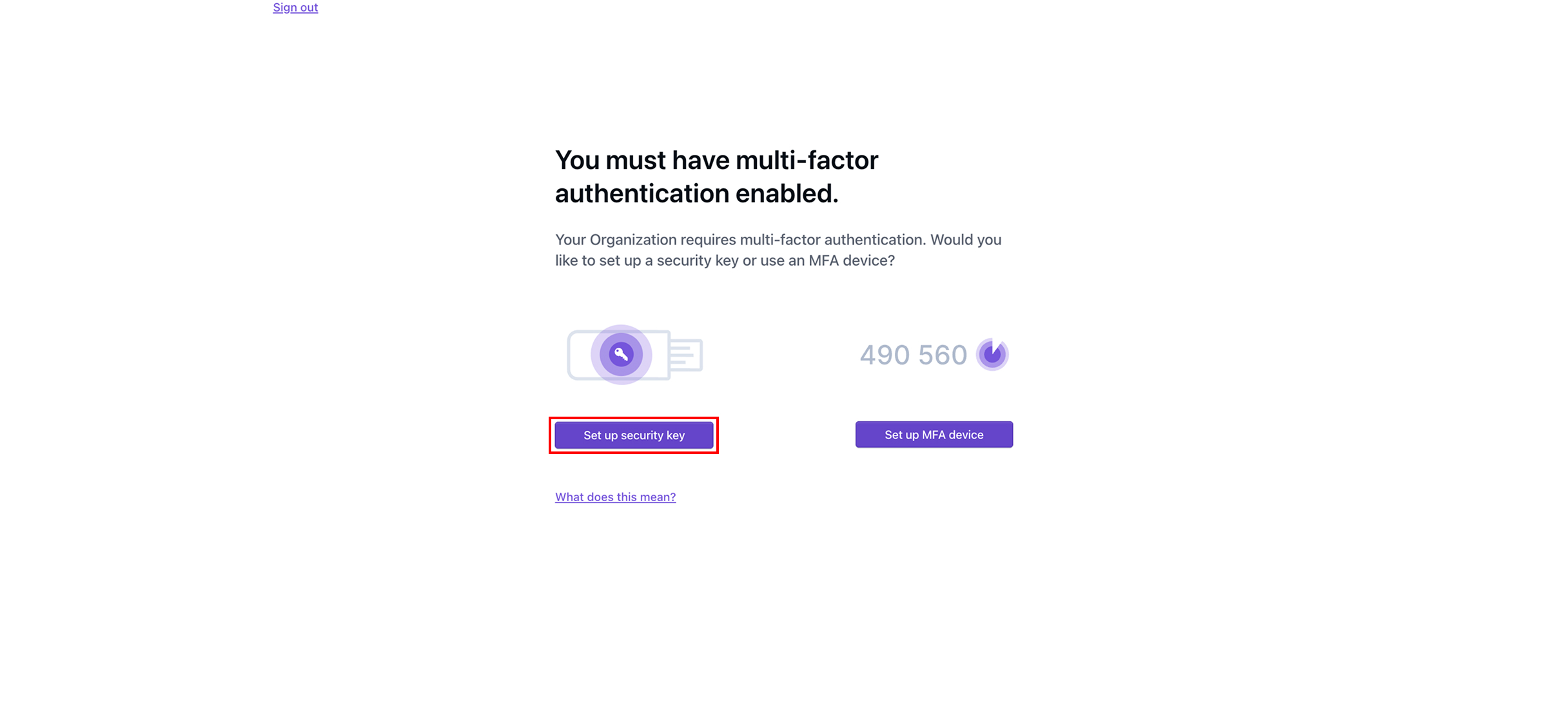
If your organization requires multi-factor authentication (MFA), you will now be prompted to set up MFA you are able to either [#set-up-mfa-device](#set-up-mfa-device "mention") or [#set-up-security-key](#set-up-security-key "mention"). If your organization does not require MFA, your account is now fully set up, and you will be brought to the Dispel dashboard.
{% endstep %}

{% step %}

#### Set up MFA device

Tap **Set up MFA device**.

<figure><img src="https://3566323743-files.gitbook.io/~/files/v0/b/gitbook-x-prod.appspot.com/o/spaces%2F5T5Fo32wwisEqZbODG7j%2Fuploads%2Fgit-blob-8619ca6fa0094c50334b14a846d2eddf5d6d4538%2FFrame%20183.jpg?alt=media" alt=""><figcaption></figcaption></figure>
{% endstep %}

{% step %}
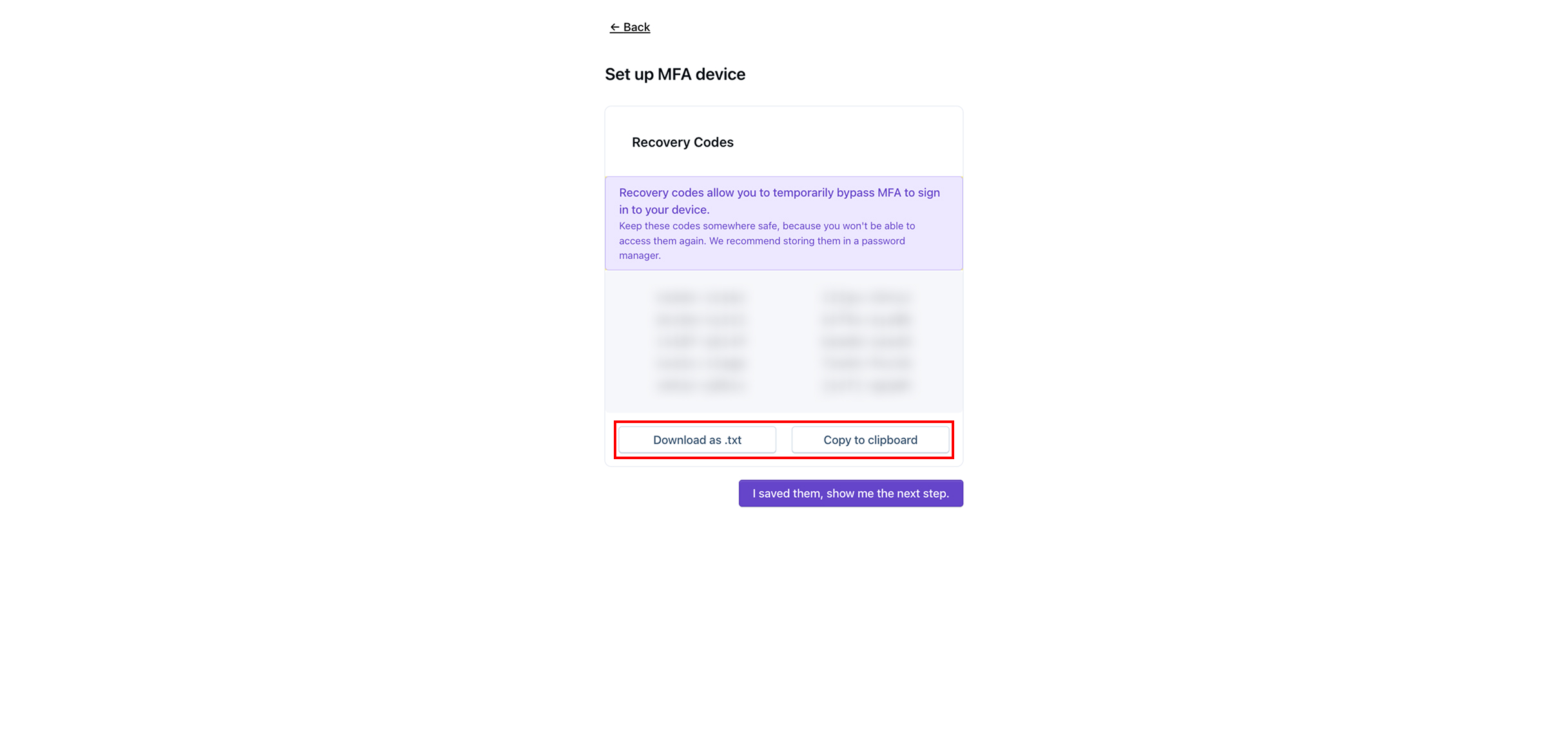
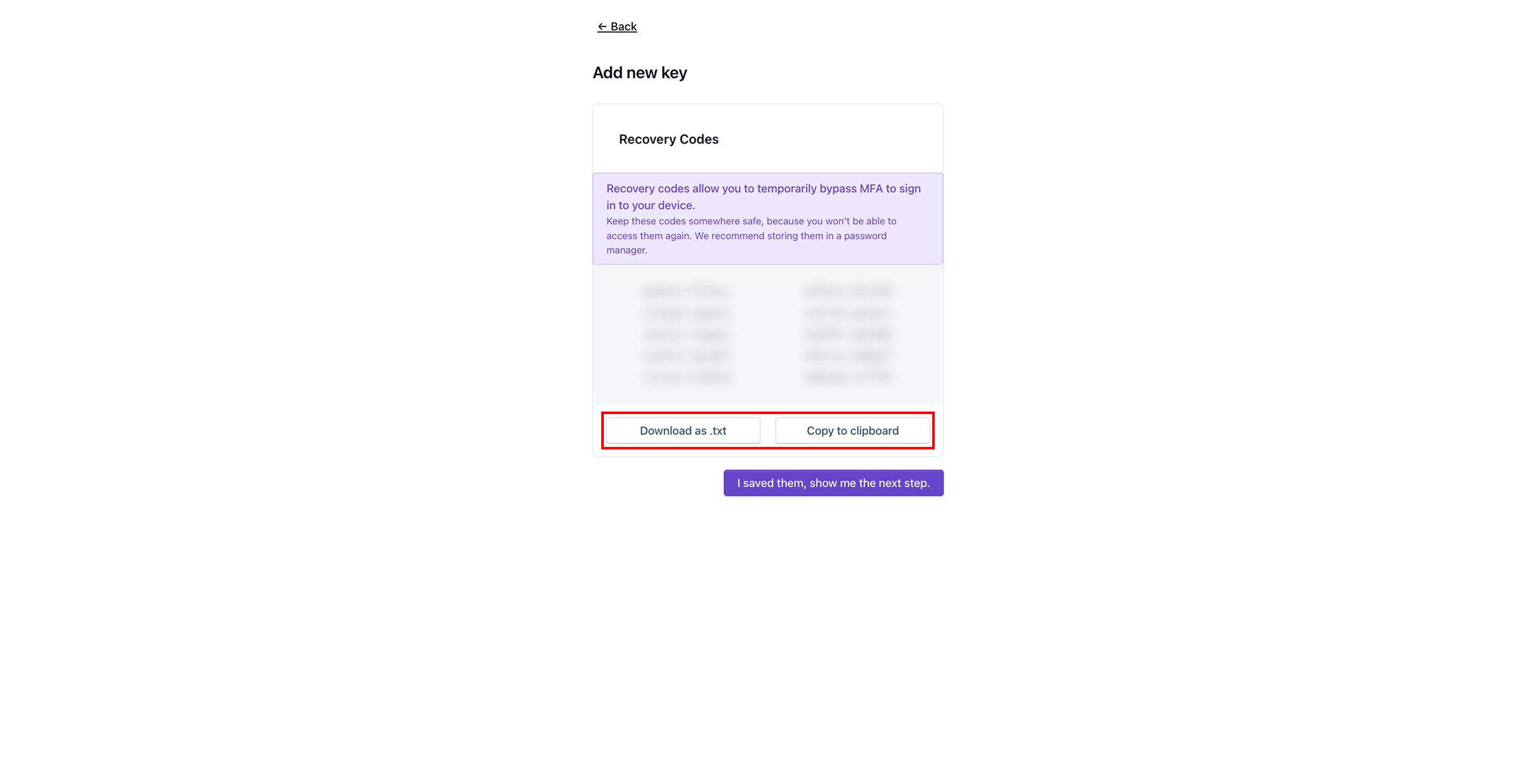
Save the recovery codes by tapping **Download as .txt** or **Copy to clipboard**, then save the recovery codes somewhere safe.

{% hint style="info" %}
Recovery codes will allow you to temporarily bypass MFA to sign into your account in the future.
{% endhint %}

<figure><img src="https://3566323743-files.gitbook.io/~/files/v0/b/gitbook-x-prod.appspot.com/o/spaces%2F5T5Fo32wwisEqZbODG7j%2Fuploads%2Fgit-blob-f5c57e3ba4d195f7bff0b90a78d2bce573f6ab71%2FFrame%20184.jpg?alt=media" alt=""><figcaption></figcaption></figure>
{% endstep %}

{% step %}
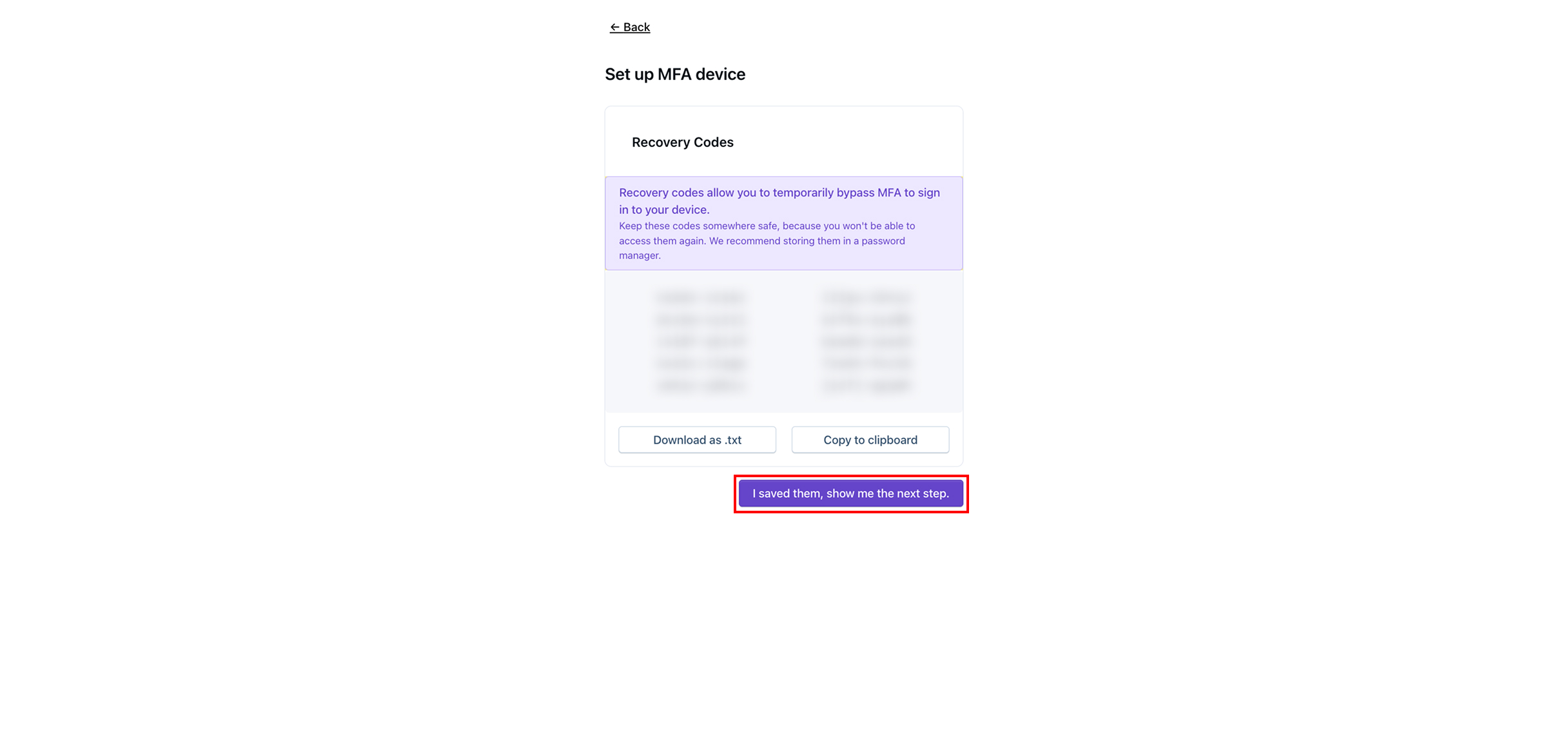
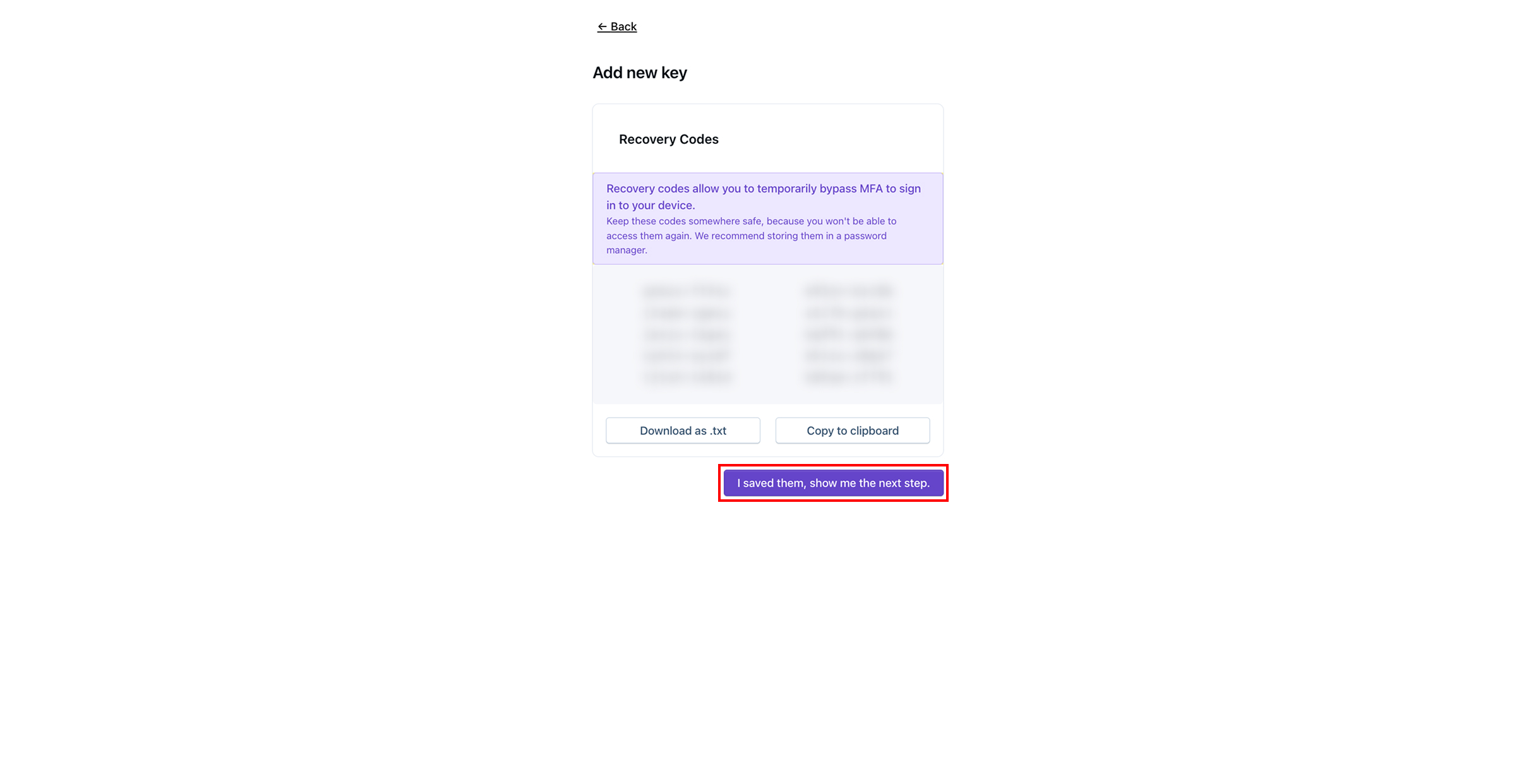
Once you have saved the recovery codes, tap **I saved them, show me the next step.**

<figure><img src="https://3566323743-files.gitbook.io/~/files/v0/b/gitbook-x-prod.appspot.com/o/spaces%2F5T5Fo32wwisEqZbODG7j%2Fuploads%2Fgit-blob-be9bacf56111abb5b5a8014e353ac22b1e1b697d%2FFrame%20185.jpg?alt=media" alt=""><figcaption></figcaption></figure>
{% endstep %}

{% step %}
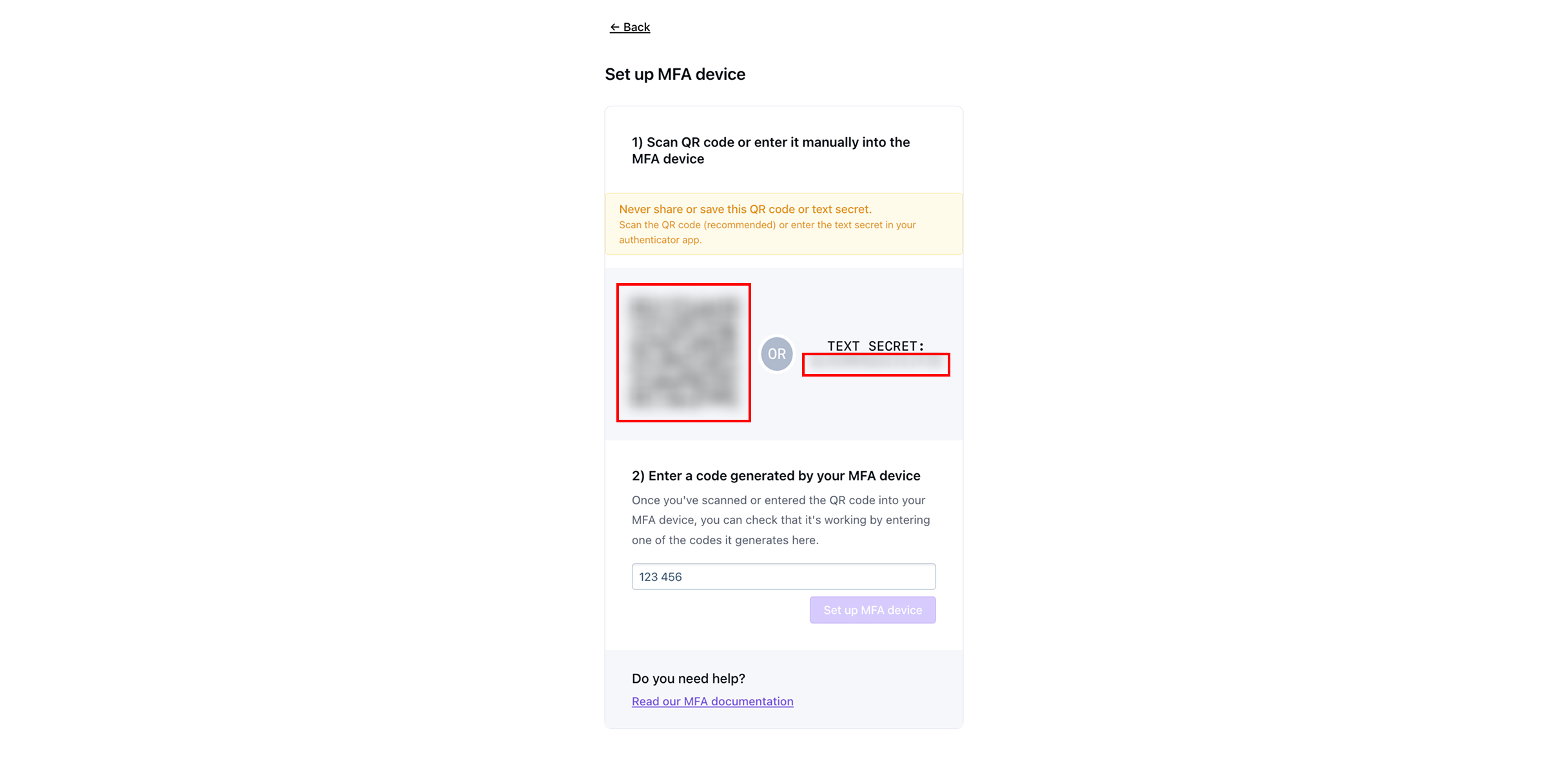
In your MFA application device of choice, either scan the QR code or input the text secret.

{% hint style="info" %}
Some standard two-factor authentication apps include [Google Duo](https://guide.duo.com/third-party-accounts), Microsoft Authenticator, or [1Password](https://support.1password.com/one-time-passwords/?mac).
{% endhint %}

<figure><img src="https://3566323743-files.gitbook.io/~/files/v0/b/gitbook-x-prod.appspot.com/o/spaces%2F5T5Fo32wwisEqZbODG7j%2Fuploads%2Fgit-blob-fe5347ddc35a2722d61ee306c51541278fc8796f%2FFrame%20186.jpg?alt=media" alt=""><figcaption></figcaption></figure>
{% endstep %}

{% step %}
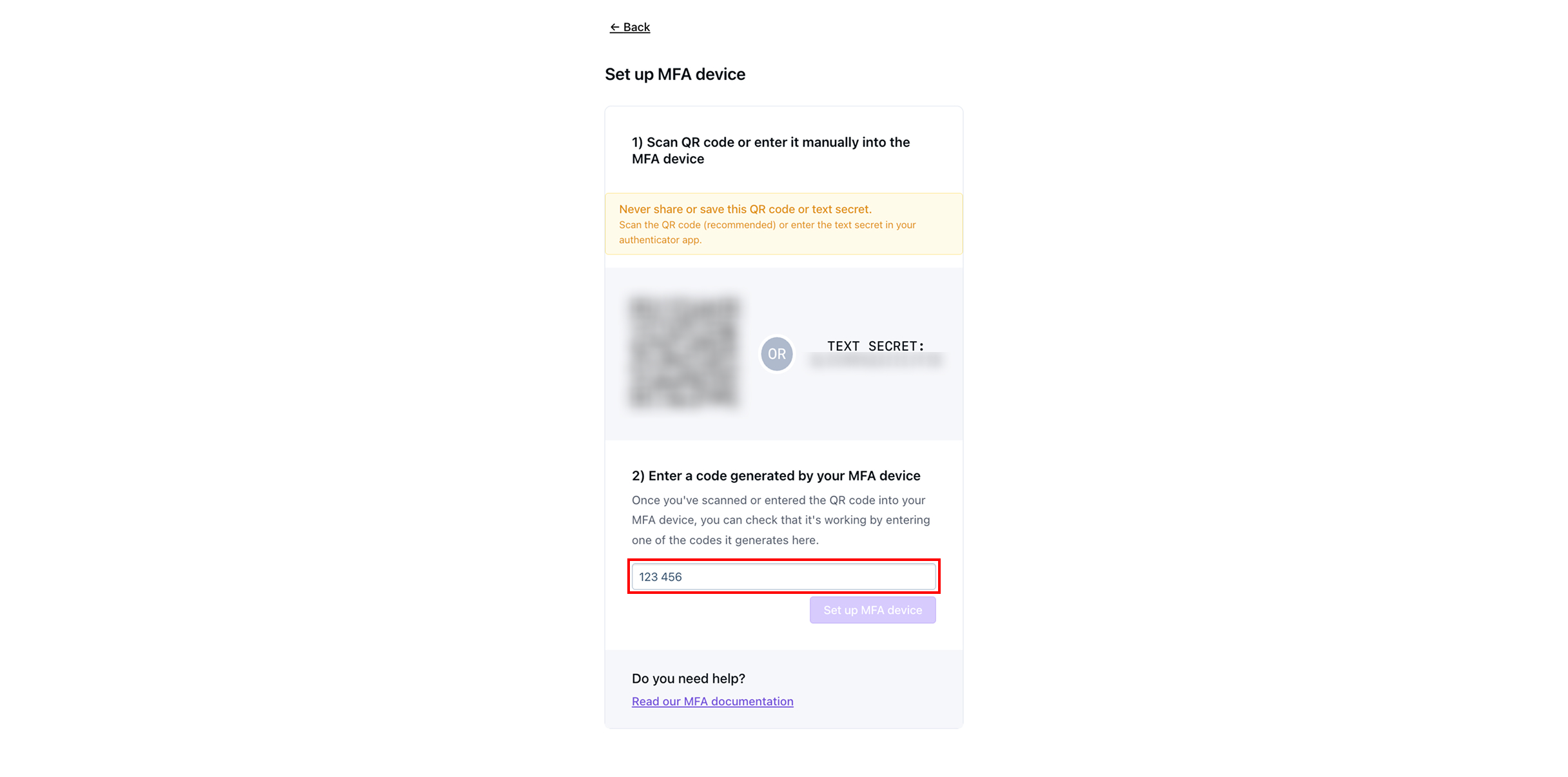
Input the 6-digit code displayed on MFA device.

<figure><img src="https://3566323743-files.gitbook.io/~/files/v0/b/gitbook-x-prod.appspot.com/o/spaces%2F5T5Fo32wwisEqZbODG7j%2Fuploads%2Fgit-blob-ef59c797ad060b1449bec8b942daf3dfa18d8052%2FFrame%20187.jpg?alt=media" alt=""><figcaption></figcaption></figure>
{% endstep %}

{% step %}
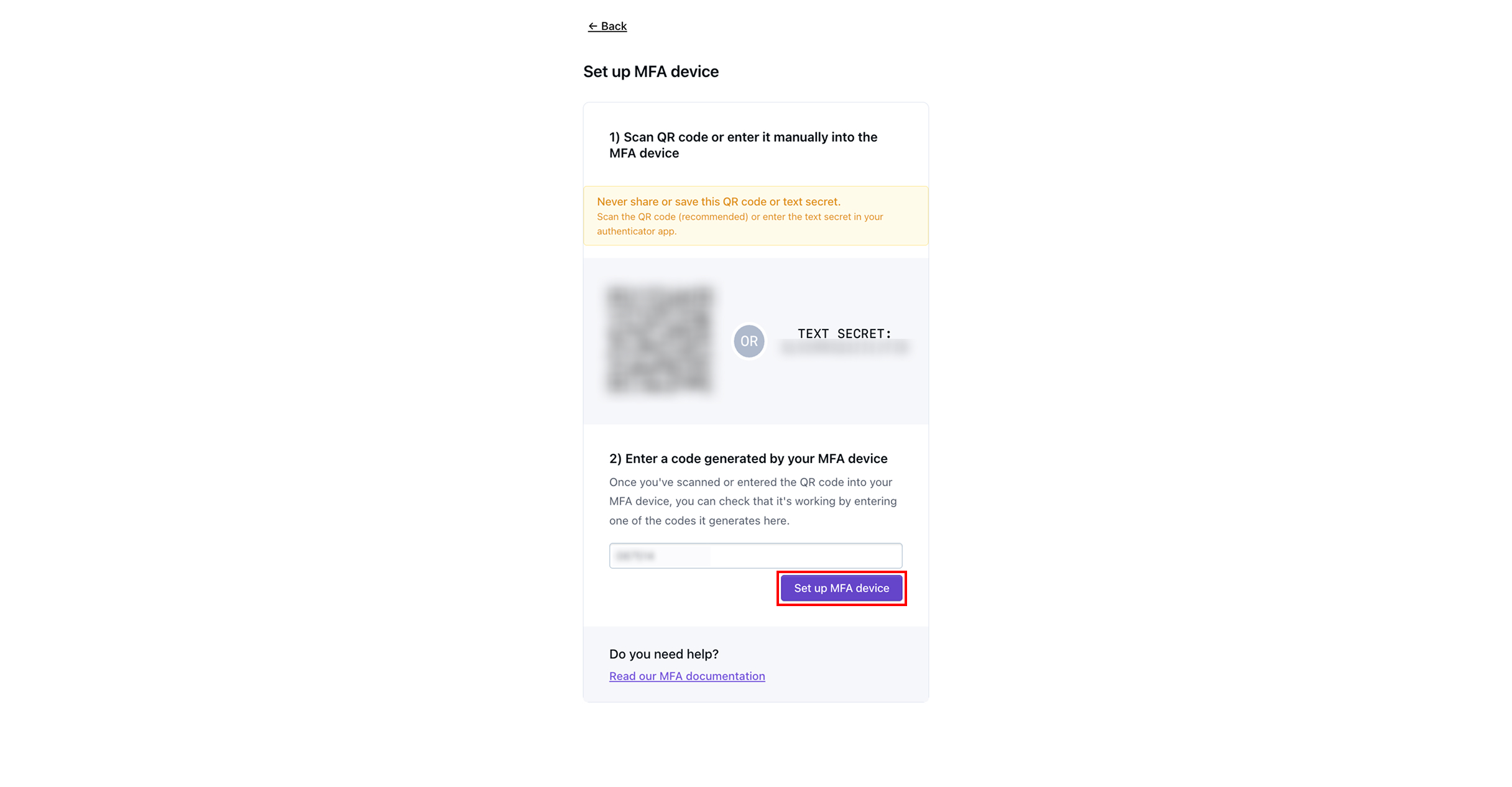
Tap **Set up MFA device.**

{% hint style="warning" %}
You must tap Set Up MFA device before the code inputted from your MFA device expires.
{% endhint %}

<figure><img src="https://3566323743-files.gitbook.io/~/files/v0/b/gitbook-x-prod.appspot.com/o/spaces%2F5T5Fo32wwisEqZbODG7j%2Fuploads%2Fgit-blob-586a2a737f080819cbf0548da0c084aeeaf68411%2FFrame%20188.jpg?alt=media" alt=""><figcaption></figcaption></figure>
{% endstep %}

{% step %}
Tap **Continue.** Your account is now fully set up, and you will be brought to the Dispel dashboard.

<figure><img src="https://3566323743-files.gitbook.io/~/files/v0/b/gitbook-x-prod.appspot.com/o/spaces%2F5T5Fo32wwisEqZbODG7j%2Fuploads%2Fgit-blob-11cbc48dc78724d0ead780f02b6d8df189fb431b%2FFrame%20189%20(1).jpg?alt=media" alt=""><figcaption></figcaption></figure>
{% endstep %}

{% step %}

#### Set Up Security Key

Tap **Set up Security Key.**

<figure><img src="https://3566323743-files.gitbook.io/~/files/v0/b/gitbook-x-prod.appspot.com/o/spaces%2F5T5Fo32wwisEqZbODG7j%2Fuploads%2Fgit-blob-9f23375dfe56ed97eb72e7e9aa34685b7724b830%2FFrame%20177.jpg?alt=media" alt=""><figcaption></figcaption></figure>
{% endstep %}

{% step %}
Save the recovery codes by tapping **Download as .txt** or **Copy to clipboard**, then save the recovery codes somewhere safe.

{% hint style="info" %}
Recovery codes will allow you to temporarily bypass MFA to sign into your account in the future.
{% endhint %}

<figure><img src="https://3566323743-files.gitbook.io/~/files/v0/b/gitbook-x-prod.appspot.com/o/spaces%2F5T5Fo32wwisEqZbODG7j%2Fuploads%2Fgit-blob-f295b80a32a42f0917c4a8f826589fe7b895a788%2FFrame%20178.jpg?alt=media" alt=""><figcaption></figcaption></figure>
{% endstep %}

{% step %}
Once you have saved the recovery codes, tap **I saved them, show me the next step.**

<figure><img src="https://3566323743-files.gitbook.io/~/files/v0/b/gitbook-x-prod.appspot.com/o/spaces%2F5T5Fo32wwisEqZbODG7j%2Fuploads%2Fgit-blob-3356d0a4ed021f9d633ab34f7c86134a90a60d6b%2FFrame%20179.jpg?alt=media" alt=""><figcaption></figcaption></figure>
{% endstep %}

{% step %}
Input a name for the device you will be using as a security key.

<figure><img src="https://3566323743-files.gitbook.io/~/files/v0/b/gitbook-x-prod.appspot.com/o/spaces%2F5T5Fo32wwisEqZbODG7j%2Fuploads%2Fgit-blob-a18190e4c3fef2c6b034f6c392405ac40e821a6c%2FFrame%20180.jpg?alt=media" alt=""><figcaption></figcaption></figure>
{% endstep %}

{% step %}
Tap **Add new key**.

<figure><img src="https://3566323743-files.gitbook.io/~/files/v0/b/gitbook-x-prod.appspot.com/o/spaces%2F5T5Fo32wwisEqZbODG7j%2Fuploads%2Fgit-blob-b3dd2e6da6b63a8ac3df9c8ca172f73ec7c627a9%2FFrame%20181.jpg?alt=media" alt=""><figcaption></figcaption></figure>
{% endstep %}

{% step %}
Plug in and activate your key. Follow the steps to register your security key.

<figure><img src="https://3566323743-files.gitbook.io/~/files/v0/b/gitbook-x-prod.appspot.com/o/spaces%2F5T5Fo32wwisEqZbODG7j%2Fuploads%2Fgit-blob-ec51f3824a437a876b65b8df0a6198cb76cfc64f%2FFrame%20182.jpg?alt=media" alt=""><figcaption></figcaption></figure>
{% endstep %}

{% step %}
Tap **Continue.** Your account is now fully set up, and you will be brought to the Dispel dashboard.

<figure><img src="https://3566323743-files.gitbook.io/~/files/v0/b/gitbook-x-prod.appspot.com/o/spaces%2F5T5Fo32wwisEqZbODG7j%2Fuploads%2Fgit-blob-11cbc48dc78724d0ead780f02b6d8df189fb431b%2FFrame%20189%20(1).jpg?alt=media" alt=""><figcaption></figcaption></figure>
{% endstep %}
{% endstepper %}

## Next Steps

{% content-ref url="/pages/2B6IZZt4O14JmHJckNES" %}
[Request an access window](/connect-to-your-systems/access-windows/request-an-access-window.md)
{% endcontent-ref %}

{% content-ref url="/pages/PlWpAqQr76XZNHlj03bz" %}
[Connection Methods](/connect-to-your-systems/connection-methods.md)
{% endcontent-ref %}


---

# Agent Instructions
This documentation is published with GitBook. GitBook is the documentation platform designed so that both humans and AI agents can read, navigate, and reason over technical content effectively. Learn more at gitbook.com.

## Querying This Documentation
If you need additional information that is not directly available in this page, you can query the documentation by asking a question.

Perform an HTTP GET request on the following URL with the `ask` and `goal` query parameters:

```
GET https://docs.dispel.com/manage-users-and-access/users/create-a-dispel-account.md?ask=<question>&goal=<user_goal>
```

`ask` is the immediate question: it should be specific, self-contained, and written in natural language.
`goal` is what the user is ultimately trying to achieve, the reason they need the answer. Sharing it helps GitBook give you a better, more relevant answer. A goal is most helpful when it describes the outcome the user wants rather than restating the question. For example, with `ask=how do I create an API token`, a goal like `automate deployments from our CI pipeline` lets GitBook tailor the answer to that use case.

The response will contain a direct answer to the question and relevant excerpts and sources from the documentation.

Use this mechanism when the answer is not explicitly present in the current page, you need clarification or additional context, or you want to retrieve related documentation sections.