> For the complete documentation index, see [llms.txt](https://docs.dispel.com/llms.txt). Markdown versions of documentation pages are available by appending `.md` to page URLs; this page is available as [Markdown](https://docs.dispel.com/secure-and-govern/identity-providers/active-directory.md).
# Active Directory
Use Active Directory as your identity provider so users sign in to Dispel with their Active Directory credentials over LDAPS.
## Configuring an Active Directory Integration
Connect Dispel to your organization's **Active Directory (AD)** so your team can sign in with their existing corporate credentials, with access granted automatically based on the AD groups users already belong to.
***
### Before you begin
These resources are necessary to enable users to sign in to Dispel via your Active Directory.
* **A read-only AD service account**: Dispel uses this to look up users and groups. This should have least-privilege and does not need write access.
* **Your domain controller hostnames** (for example `dc01.corp.example.com`), reachable from Dispel over **LDAPS (port 636)**.
* **The CA certificate** that issued your domain controllers' TLS certificates.
* **The organizational units (OUs)** where your users and groups live.
***
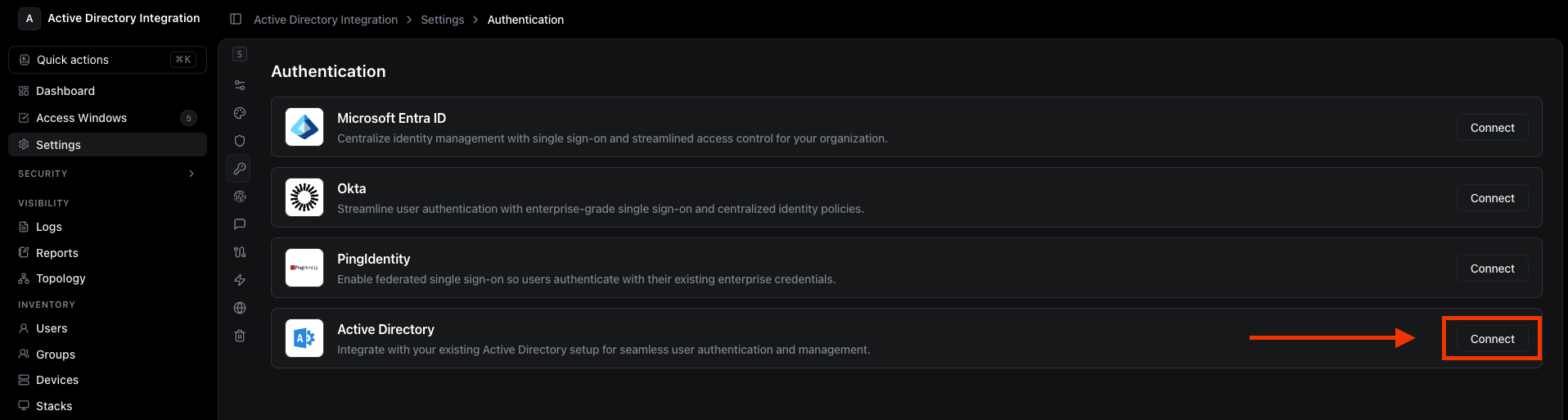
### 1. Open the Active Directory settings
Navigate to **Settings → Authentication → Active Directory** in the Dispel dashboard.
***
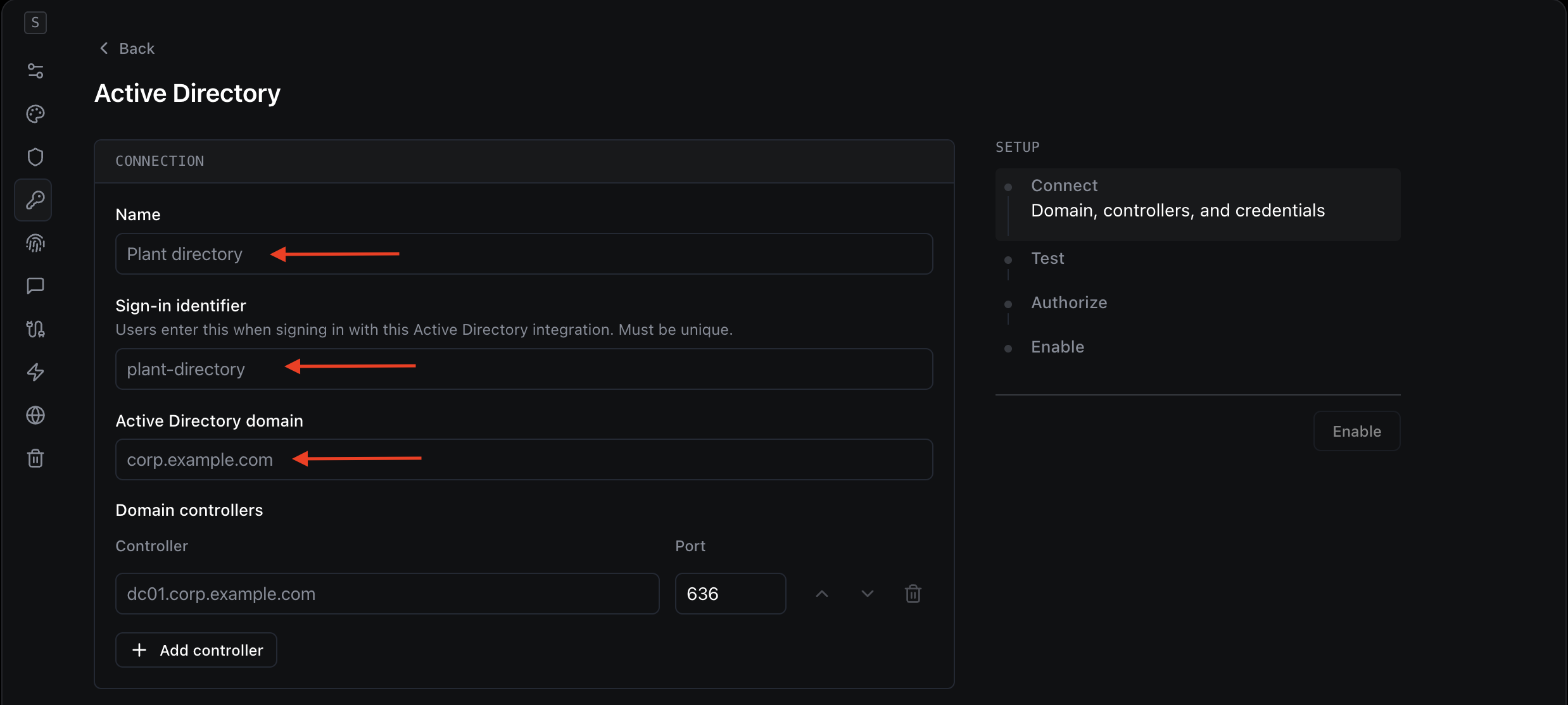
### 2. Name the integration and set the sign-in identifier
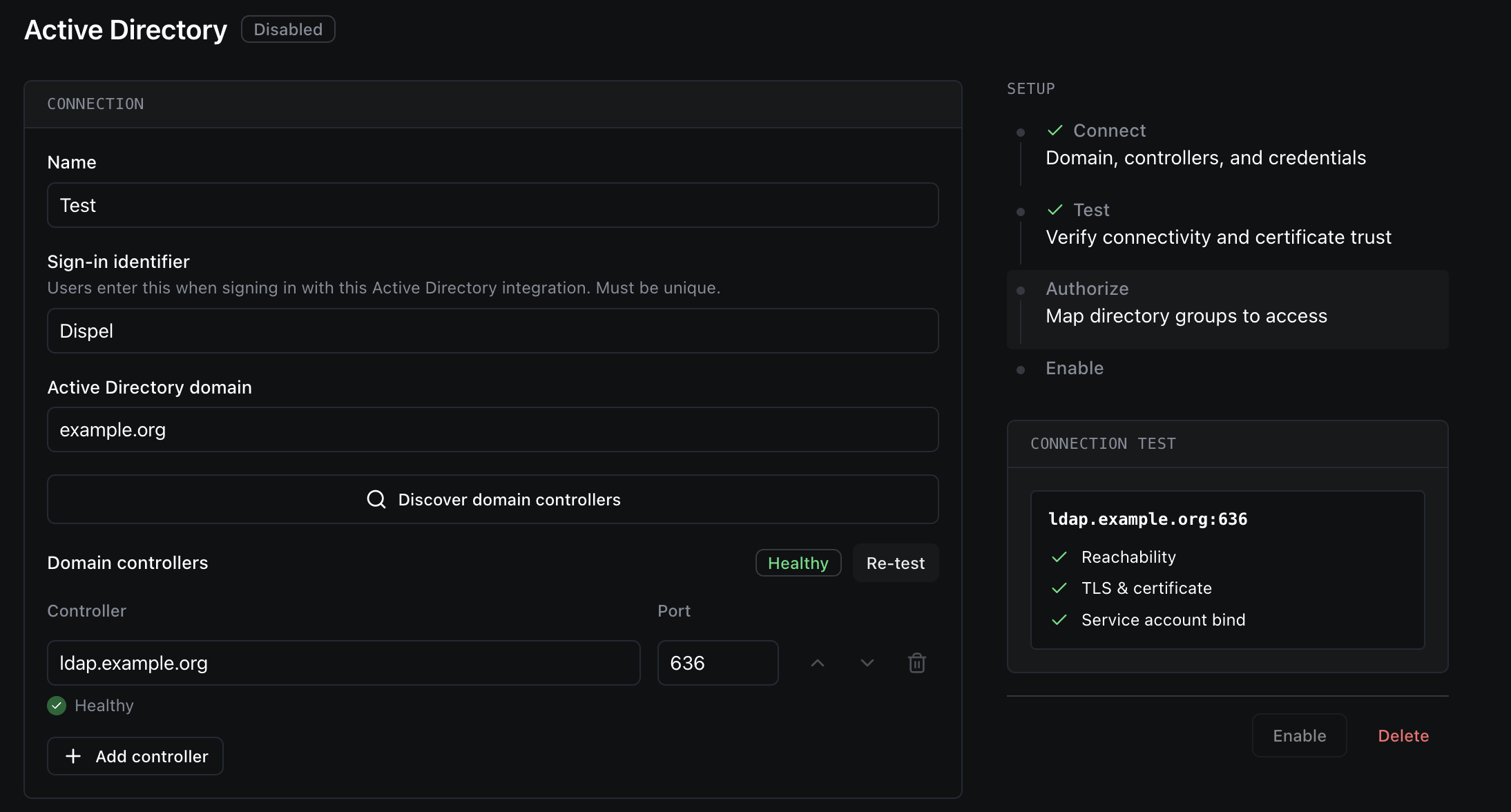
Fill in the **Connection** section.
| Field | What it is | Where to find it |
| --------------------------- | ------------------------------------------------------------------------------------------------------------------ | --------------------------------------------------------------------------------- |
| **Name** | A friendly label for this integration, shown only inside Dispel. | Your choice - e.g. "Corporate AD" or "Plant Directory". |
| **Sign-in identifier** | The short, unique keyword your users enter when signing in with this directory. Use letters, numbers, and hyphens. | Your choice - e.g. `plant-directory`. Must be unique across your integrations. |
| **Active Directory domain** | Your AD DNS domain name. | Your AD/DNS domain, e.g. `corp.example.com`. Ask your AD administrator if unsure. |
***
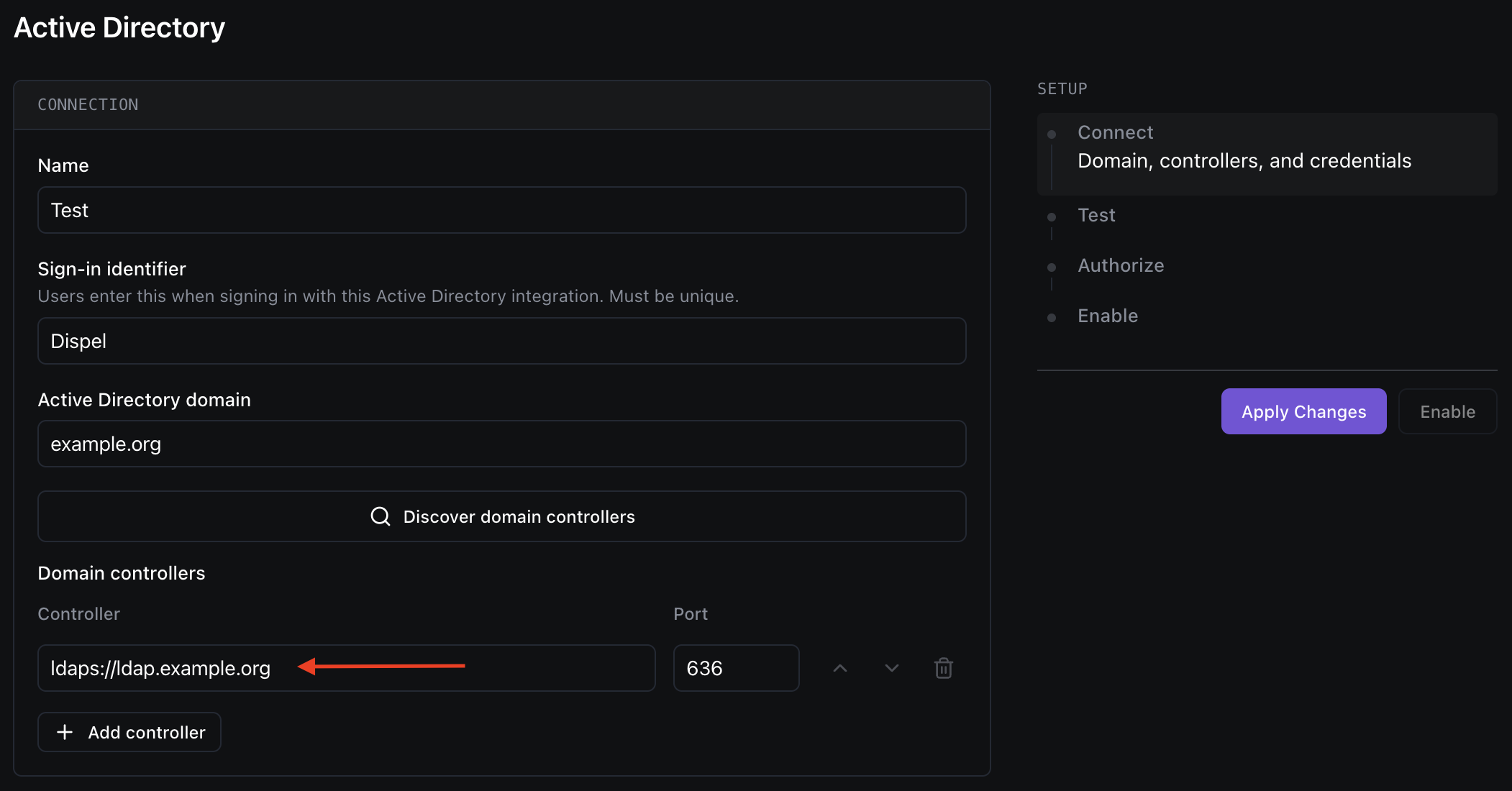
### 3. Add your domain controllers
List the domain controllers Dispel should connect to. Add one per row; you can add several for redundancy.
| Field | What it is | Where to find it |
| -------------- | ---------------------------------------------------------------------------- | ------------------------------------------------------------------------------------------------------ |
| **Controller** | The hostname (or IP) of a domain controller, reached over LDAPS on port 636. | e.g. `dc01.corp.example.com`. From your AD administrator or DNS. Make sure it's reachable from Dispel. |
> **Tip:** After you save and test, each controller shows a health status - **Healthy**, **Unreachable**, **TLS failing**, or **Bind failing** - so you can spot connection problems at a glance.
***
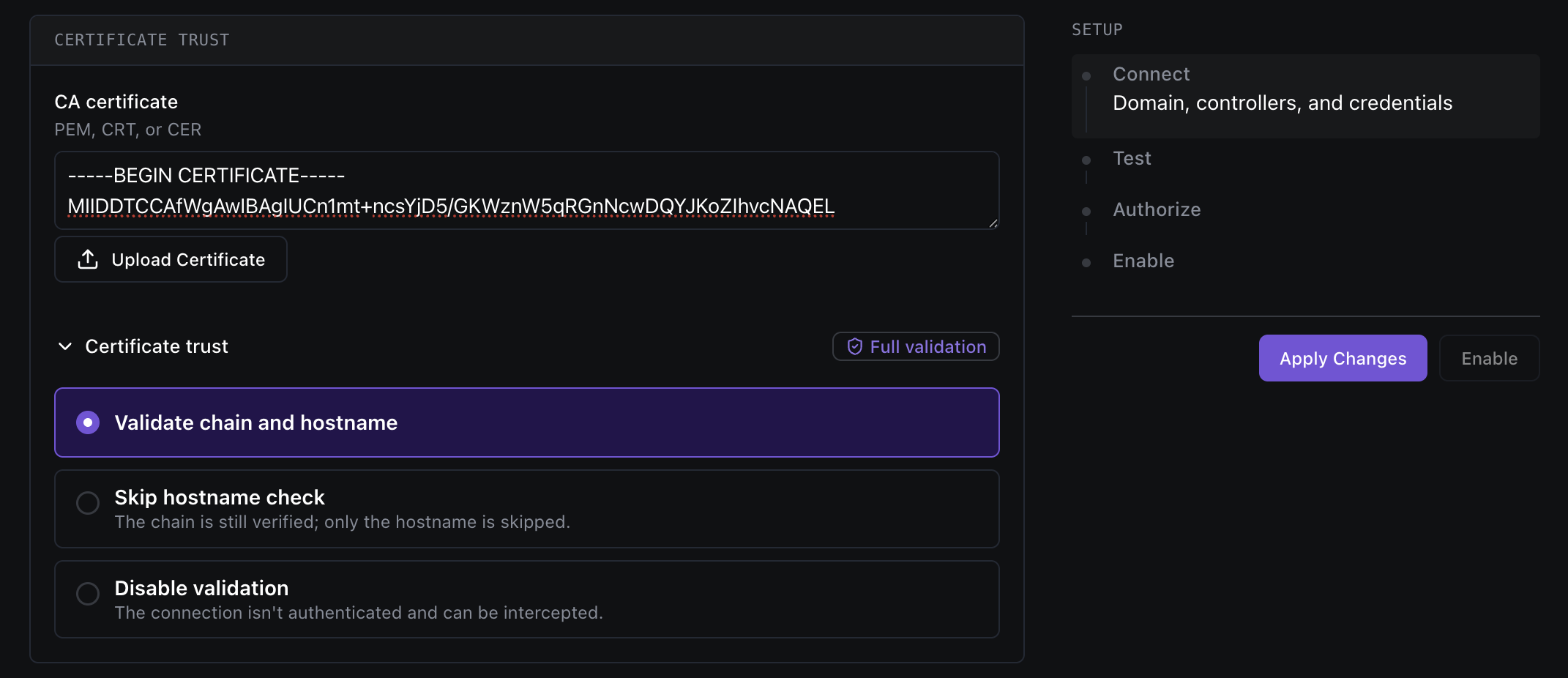
### 4. Choose certificate trust
Under **Certificate trust**, choose how Dispel validates your domain controllers' TLS certificate. **Full validation is strongly recommended.**
| Option | What it means | When to use it |
| ----------------------------------------------- | ------------------------------------------------------------------------------------- | ----------------------------------------------------------------------------- |
| **Validate chain and hostname** *(recommended)* | Dispel verifies the certificate chain **and** that the hostname matches. Most secure. | Almost always. Upload your CA certificate below. |
| **Skip hostname check** | The chain is still verified; only the hostname match is skipped. | Only if your certificate's hostname doesn't match the address you connect to. |
| **Disable validation** | The connection is **not** authenticated and could be intercepted. | Not recommended. Requires an explicit confirmation. |
| Field | What it is | Where to find it |
| ------------------ | ------------------------------------------------------------------------------------------------------------------------------- | -------------------------------------------------------------------------- |
| **CA certificate** | The public certificate of the authority that signed your domain controllers' certificates. Paste the PEM text or upload a file. | From your PKI or AD administrator. Accepted formats: **PEM, CRT, or CER**. |
***
### 5. Add the service account credentials
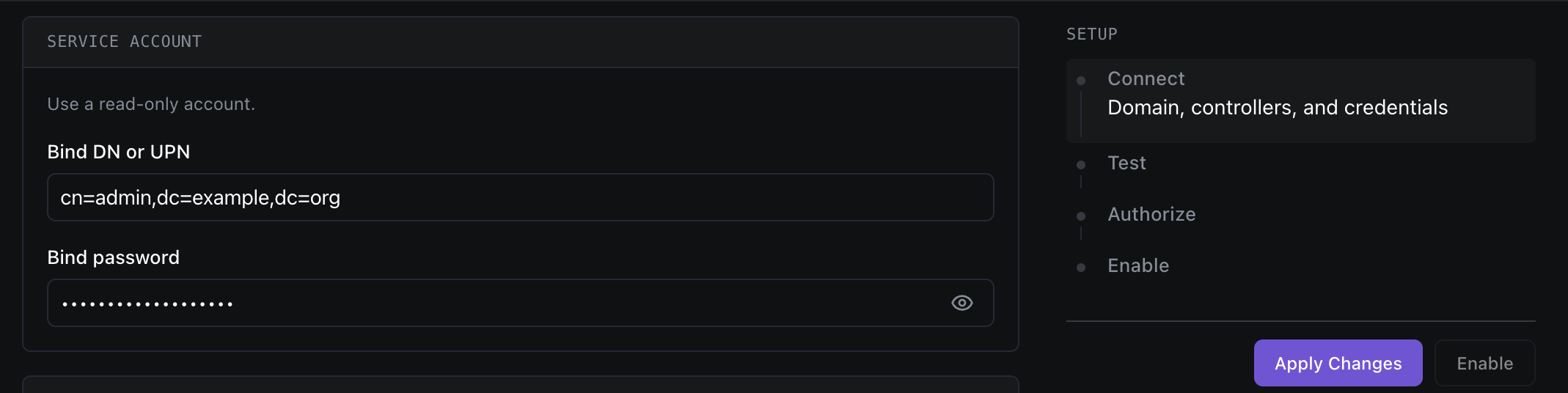
Under **Service account**, provide the read-only account Dispel uses to query your directory.
| Field | What it is | Where to find it |
| ------------------ | -------------------------------------------- | ------------------------------------------------------------------------------------------------------------------------------------------------------------------------------- |
| **Bind DN or UPN** | The service account Dispel authenticates as. | The account's UPN (e.g. `svc-dispel@corp.example.com`) or distinguished name (e.g. `CN=svc-dispel,OU=Service Accounts,DC=corp,DC=example,DC=com`). Use a **read-only** account. |
| **Bind password** | The service account's password. | Set by whoever created the service account. (Once saved, it's hidden — enter a new value only to replace it.) |
***
### 6. Set the identity mapping
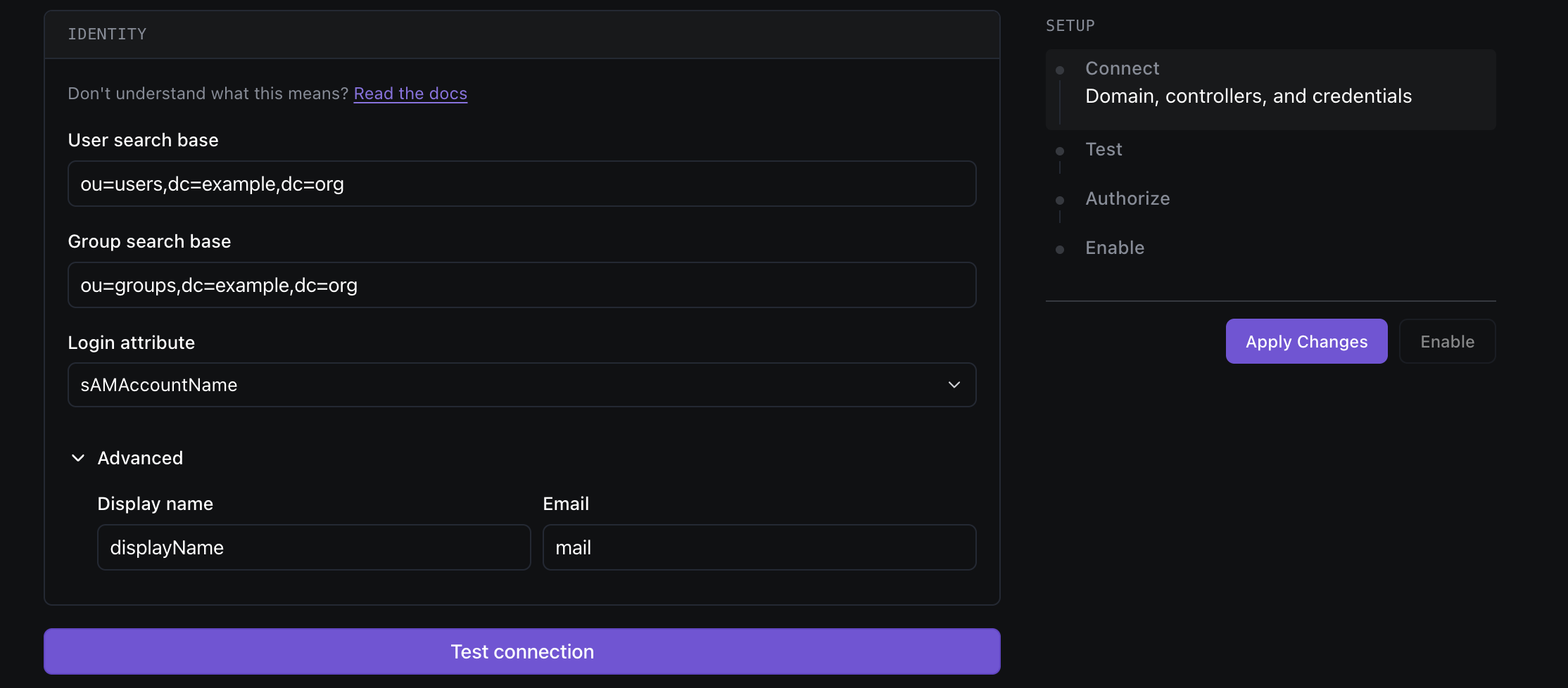
Under **Identity**, tell Dispel where to find users and groups, and which attributes to read.
| Field | What it is | Where to find it |
| --------------------- | ------------------------------------------------------------------ | --------------------------------------------------------------------------------------------------------- |
| **User search base** | The OU (distinguished name) under which Dispel searches for users. | e.g. `OU=Users,DC=corp,DC=example,DC=com`. From your AD structure (Active Directory Users and Computers). |
| **Group search base** | The OU under which Dispel searches for groups. | e.g. `OU=Groups,DC=corp,DC=example,DC=com`. From your AD structure. |
| **Login attribute** | The AD attribute users type as their username when signing in. | Choose from the discovered attributes - commonly `sAMAccountName` or `userPrincipalName`. |
**Advanced** (optional - expand to adjust):
| Field | What it is | Where to find it |
| ---------------- | ---------------------------------------------- | -------------------------------------- |
| **Display name** | The attribute used for a user's display name. | Usually `displayName` or `cn`. |
| **Email** | The attribute used for a user's email address. | Usually `mail` or `userPrincipalName`. |
***
### 7. Test the connection
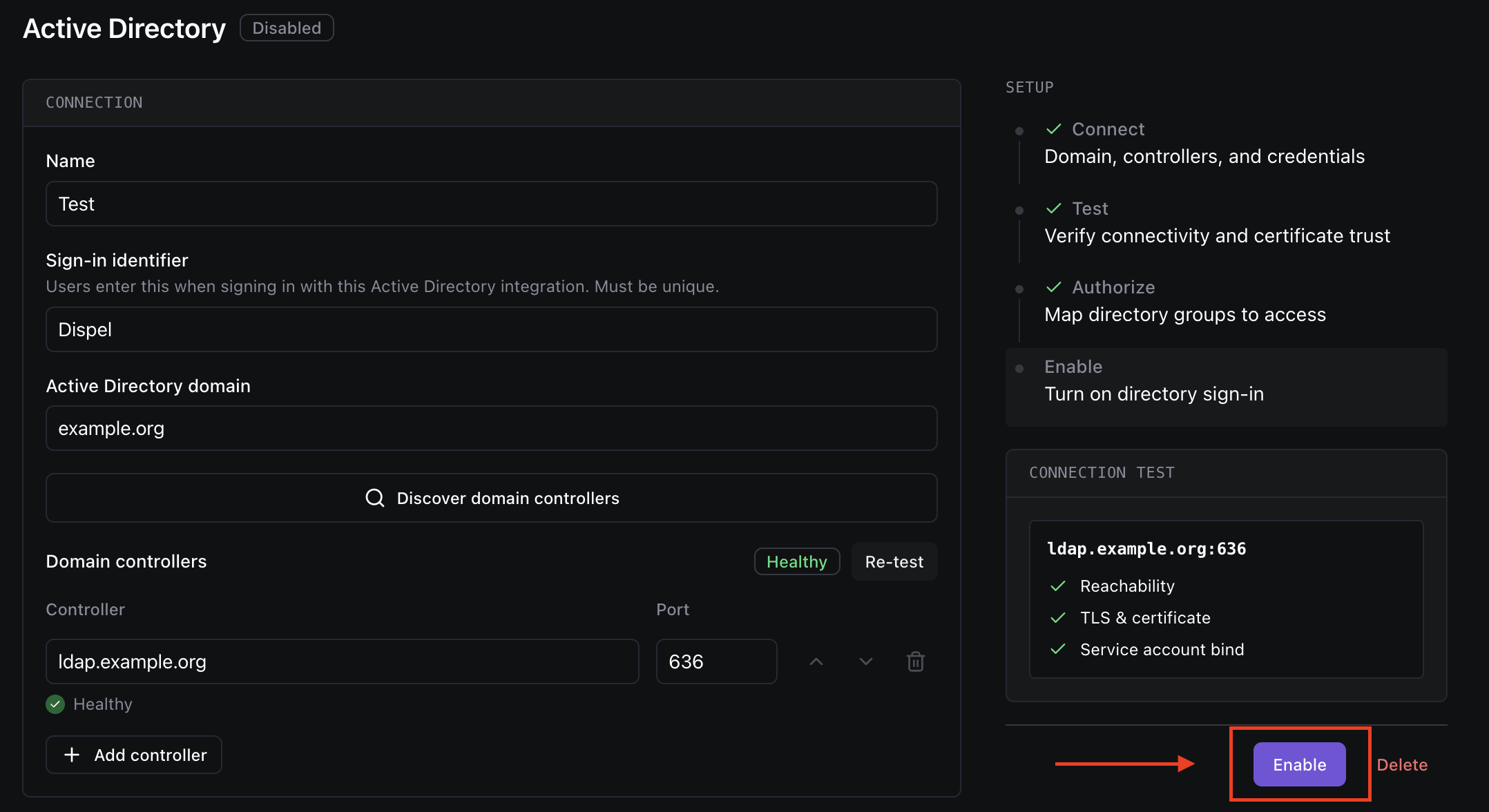
Click **Test connection**. Dispel binds with the service account and checks each domain controller.
* A **passing** test unlocks group mapping and lets you enable the integration.
* If a controller shows **TLS failing**, **Bind failing**, or **Unreachable**, see [Troubleshooting](#troubleshooting) below.
> **Note:** If you change any connection settings later, the previous test result becomes **Stale** - re-test before enabling.
***
### 8. Map AD groups to Dispel groups
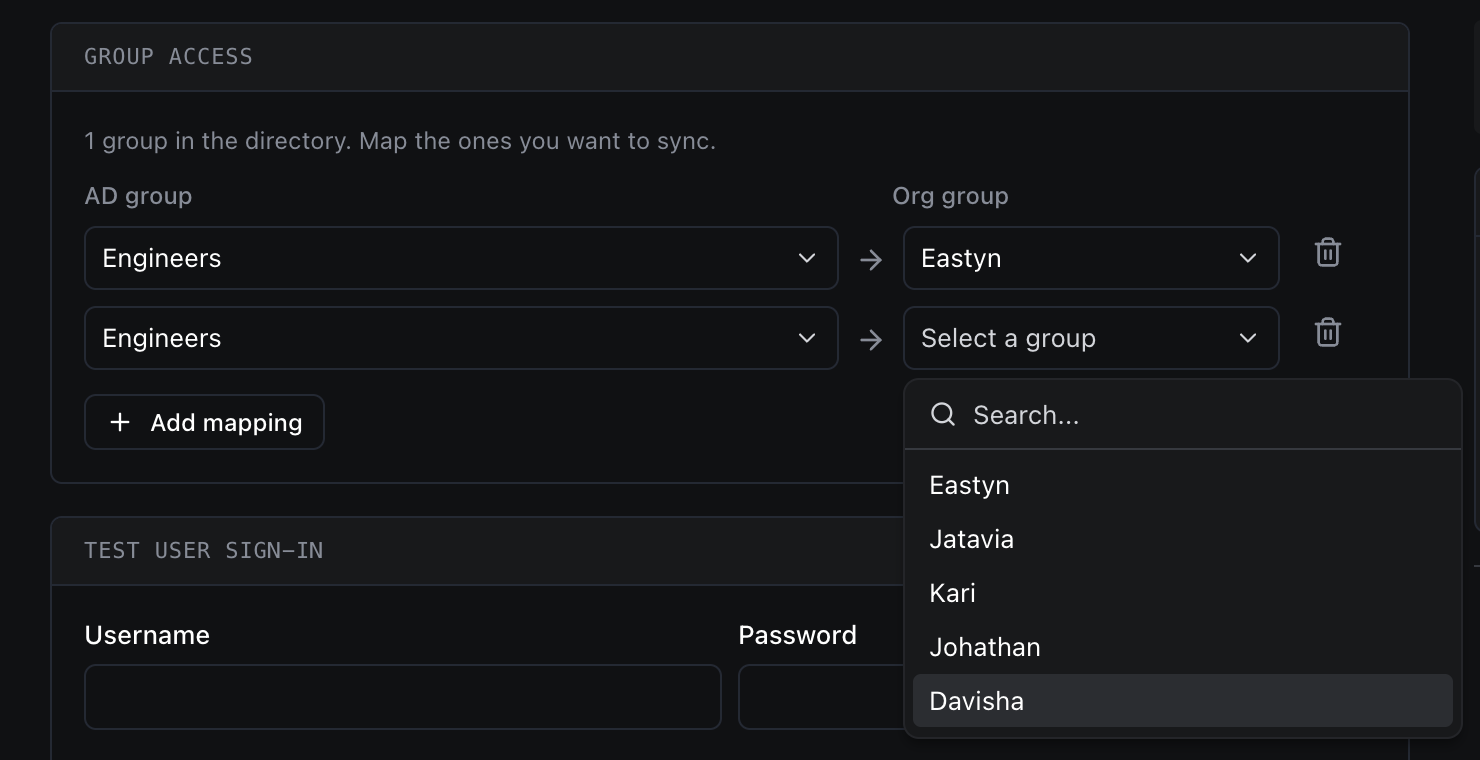
Under **Group access**, map each Active Directory group to the Dispel group whose access it should grant. **Users who don't fall into any mapped group can't sign in**, so map at least one.
| Column | What it is | Where to find it |
| ------------- | ---------------------------------------------------- | ----------------------------------------------- |
| **AD group** | The Active Directory group to read membership from. | Start typing to search your directory's groups. |
| **Org group** | The Dispel group whose access those members receive. | Pick from your existing Dispel groups. |
Use **Add mapping** to add more rows. Members are kept in sync automatically: users added to a mapped AD group gain access, and users removed lose access.
***
### 9. (Optional) Test a user sign-in
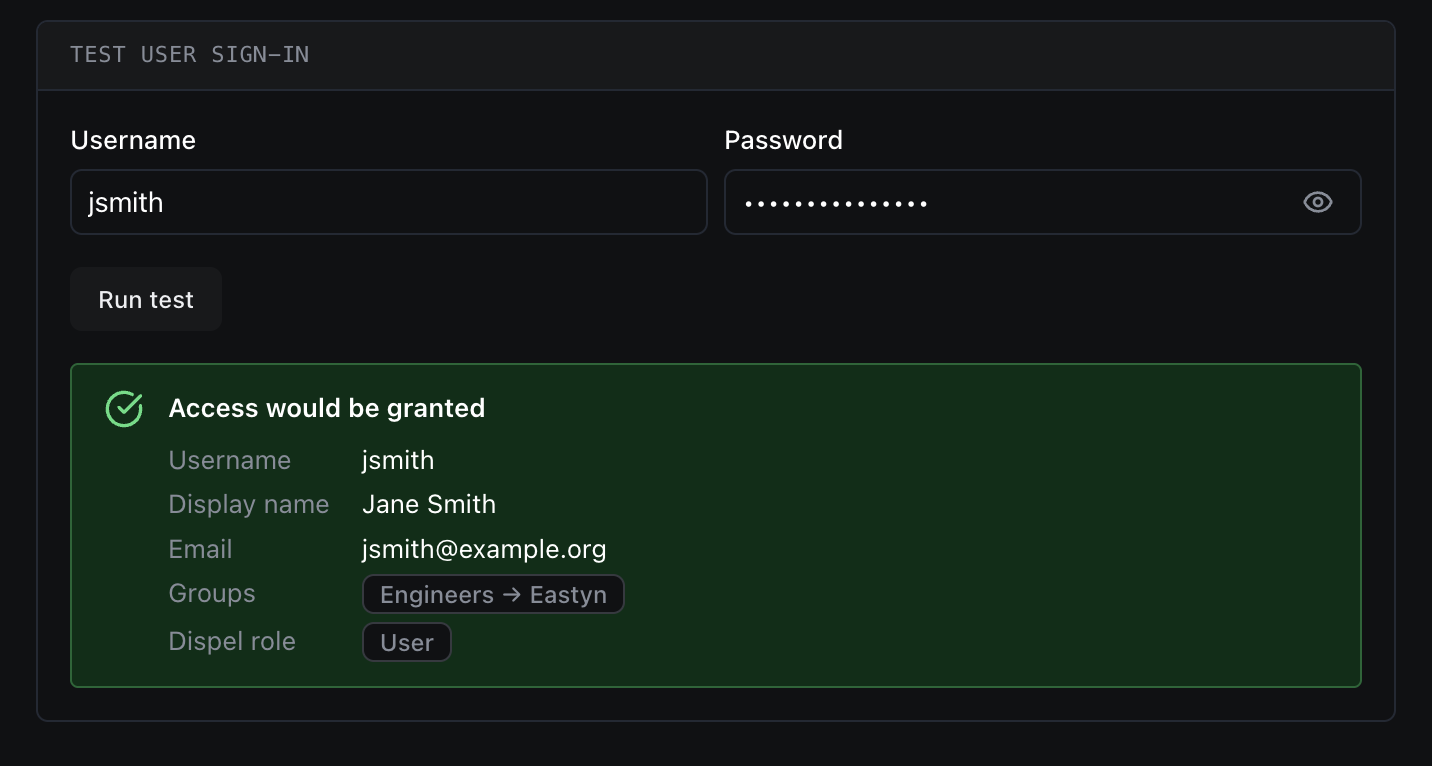
Before enabling, you can dry-run a real user's sign-in under **Test user sign-in** to confirm they'd be allowed to sign in and land in the right groups.
| Field | What it is | Where to find it |
| ------------ | --------------------------------------- | ----------------------------------------------------------------- |
| **Username** | A real directory username to test with. | Any AD user's login value (matching your chosen login attribute). |
| **Password** | That user's password. | The user's own password. Used only for the test and never stored. |
Click **Run test** to see whether access would be **granted** or **denied**, and which groups resolve.
***
### 10. Enable the integration
When the connection test passes and at least one group is mapped, click **Enable**. Your users can now sign in with their Active Directory credentials using the sign-in identifier from Step 2.
***
### How users sign in
Once the integration is enabled, users sign in with their Active Directory credentials instead of a Dispel password:
1. On the Dispel sign-in screen, the user enters your **sign-in identifier**, then their **AD username and password**.
2. Dispel authenticates the credentials directly against your directory — there's no redirect to an external identity provider.
3. On success, they're signed in.
Dispel reads the user's email and display name from the directory, using the attributes you configured.
{% hint style="info" %}
**Users must be invited first**. Authenticating against AD confirms who a user is, but it doesn't grant access on its own. For Active Directory, invitations are created automatically when a user belongs to a mapped AD group — the group sync invites them (and revokes access when they're removed from the group). A user who isn't in any mapped group can't sign in.
{% endhint %}
***
### Keeping access in sync
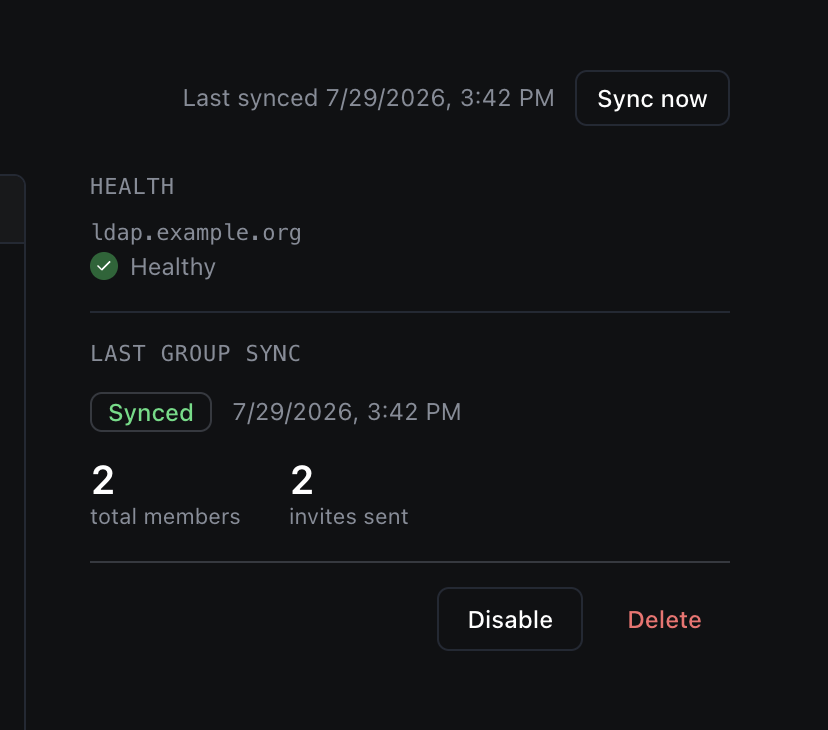
Once the integration is enabled, Dispel automatically keeps Dispel group membership aligned with your mapped Active Directory groups on a recurring schedule - users added to a mapped group gain access, and users removed from a mapped group lose access with no manual steps.
If you've just changed membership in Active Directory and want it reflected right\
away, use **Sync now**.
* **Sync now** appears in the top-right of the Active Directory page header, and\
only after the integration is **enabled**.
* Click it to run a sync immediately. While it's working, the button shows\
**Syncing…**, and the **Last synced** timestamp updates when it finishes.
* You don't need to do this routinely - automatic syncs keep everything current on\
their own. Use it when you want a change applied without waiting for the next\
scheduled sync.
***
### Managing the integration
* **Apply Changes**: save edits to an existing integration. Changing connection settings marks the test result stale; re-test before relying on it.
* **Disable**: stop directory sign-in without deleting the configuration. Local and break-glass sign-in stay available; you can re-enable at any time.
* **Delete**: remove the integration entirely, including domain controllers, certificate trust, and group mappings.
***
### Troubleshooting
| Status / message | What it usually means | What to check |
| -------------------- | ------------------------------------------ | ------------------------------------------------------------------------------------------------------------- |
| **Unreachable** | Dispel can't reach the domain controller. | Hostname is correct and reachable from Dispel over port 636. |
| **TLS failing** | The certificate couldn't be validated. | The correct CA certificate is uploaded (Step 4), and it matches your controllers' certificates. |
| **Bind failing** | The service account couldn't authenticate. | The Bind DN/UPN and password are correct, the login/email attributes are correct, and the account is enabled. |
| **A user is denied** | The user isn't in any mapped group. | Confirm they belong to a mapped AD group, and that the group mapping (Step 8) is correct. |
---
# Agent Instructions
This documentation is published with GitBook. GitBook is the documentation platform designed so that both humans and AI agents can read, navigate, and reason over technical content effectively. Learn more at gitbook.com.
## Querying This Documentation
If you need additional information that is not directly available in this page, you can query the documentation by asking a question.
Perform an HTTP GET request on the following URL with the `ask` and `goal` query parameters:
```
GET https://docs.dispel.com/secure-and-govern/identity-providers/active-directory.md?ask=&goal=
```
`ask` is the immediate question: it should be specific, self-contained, and written in natural language.
`goal` is what the user is ultimately trying to achieve, the reason they need the answer. Sharing it helps GitBook give you a better, more relevant answer. A goal is most helpful when it describes the outcome the user wants rather than restating the question. For example, with `ask=how do I create an API token`, a goal like `automate deployments from our CI pipeline` lets GitBook tailor the answer to that use case.
The response will contain a direct answer to the question and relevant excerpts and sources from the documentation.
Use this mechanism when the answer is not explicitly present in the current page, you need clarification or additional context, or you want to retrieve related documentation sections.